How to Add a New Patient
To create a new patient in the system, follow these steps:
Click the + Add new patient button.
Note: The button is accessible on the Dashboard, Patients, and Surgeons tabs.

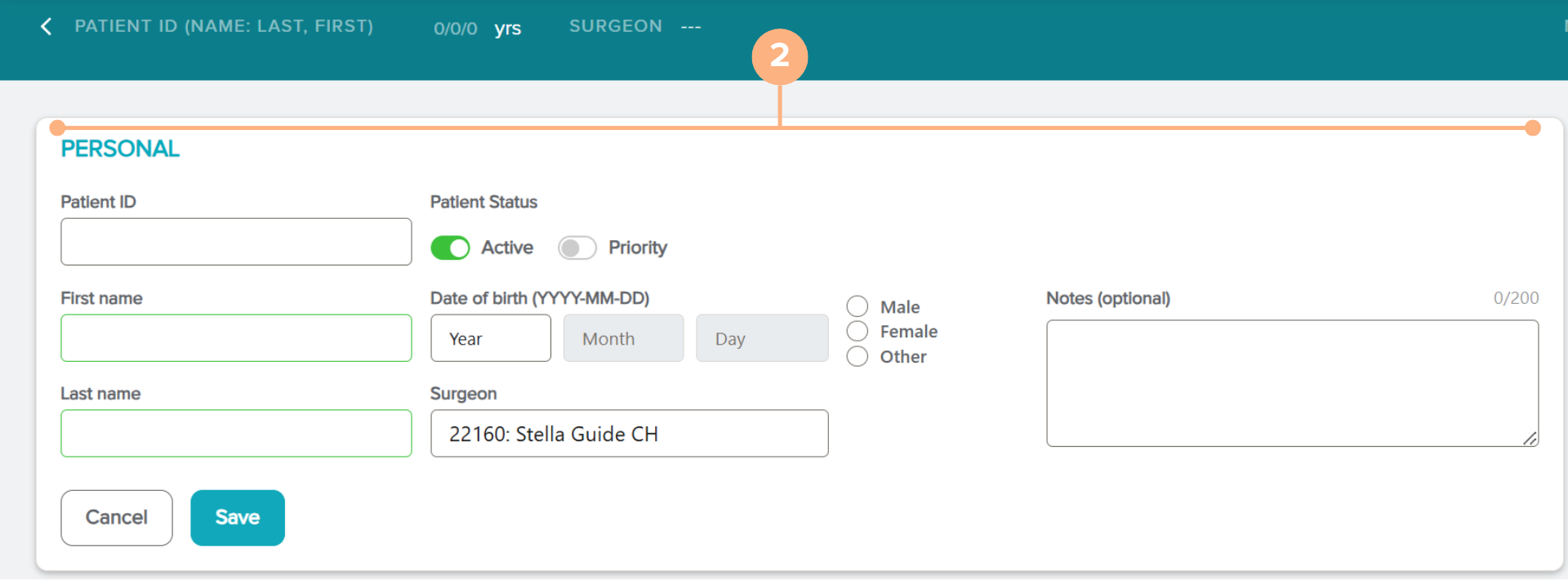
Enter the patient’s information.
The data fields include:
- Patient Identification (accepts all alphanumeric characters but cannot exceed 15 characters)
- Patient’s First and Last Name (optional fields)
- Patient Status (Active and/or Priority)
- Date of Birth
- Gender
- Surgeon
- Notes (optional)
Important Note: A default surgeon may already be selected if your account is logged-in as a surgeon. You may change this selection by clicking on the Surgeon field. If no surgeon is selected, the pre-op data cannot be entered.
Additional note: If you prefer to not include the patient’s first and last name as an available field when adding a patient to the system, you may contact the Customer Service Department at customerservice.ag@staar.com to request for these fields to be removed from your account.
- Click Save, to complete the patient creation process.
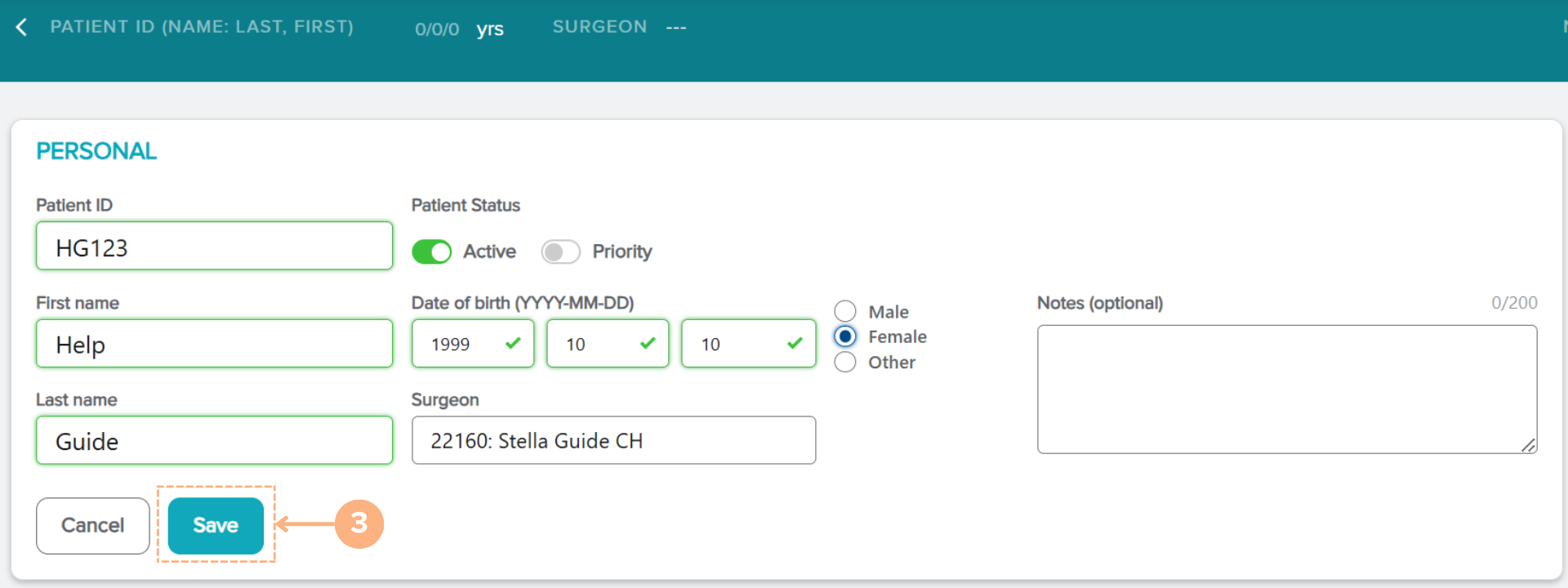
The new patient will be added to the system. To view all existing patients, click on the Patients tab to view all patient activity.
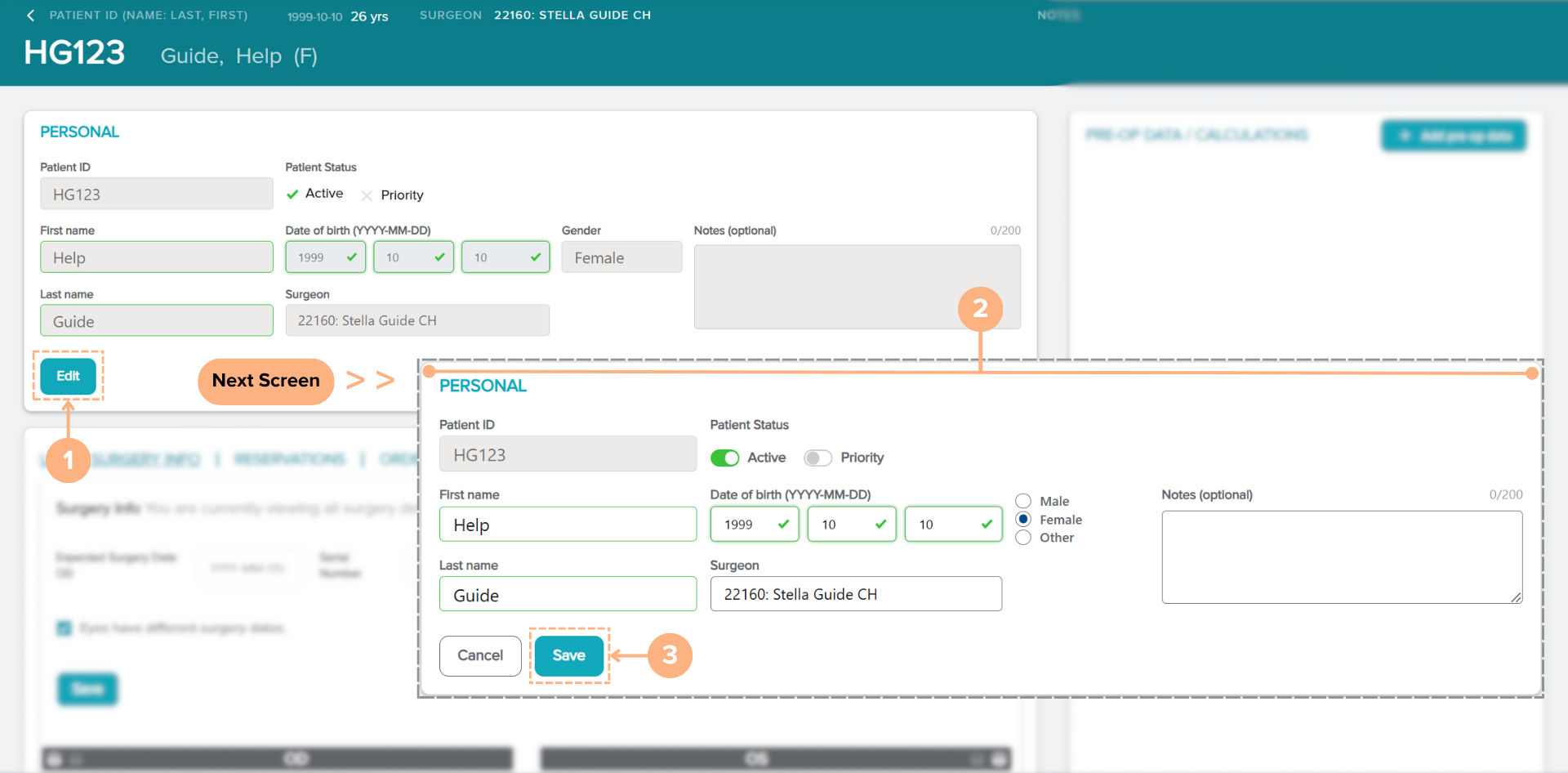
How to Edit Patient Details
If you need to make any changes to an existing patient’s details, follow the steps below:
On the Patient Details page:
- Click on the Edit button in the PERSONAL section.
- Make changes to the patient details as needed.
- Click the Save button to save the new changes.
Note: Click on the Cancel button to abandon the action