Sort and Search Notifications
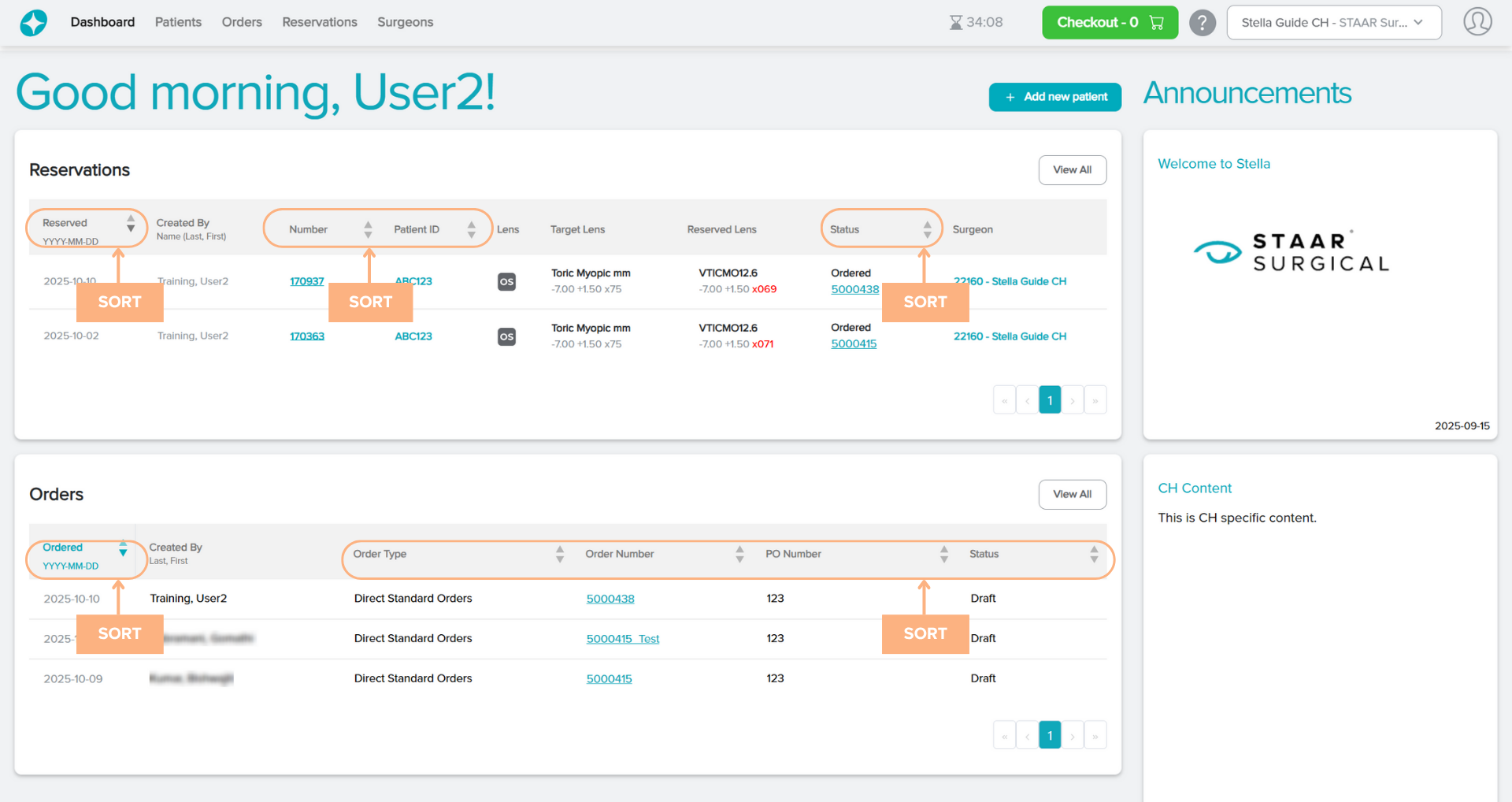
By default, the notifications are sorted by the most recent at the top. There is an option to sort the list in ascending or descending order by clicking on the text or the corresponding arrow for the following categories:
- Reserved/Ordered Date
- Order Type
- Order/Reservation Number
- Patient ID
- PO Number
- Status
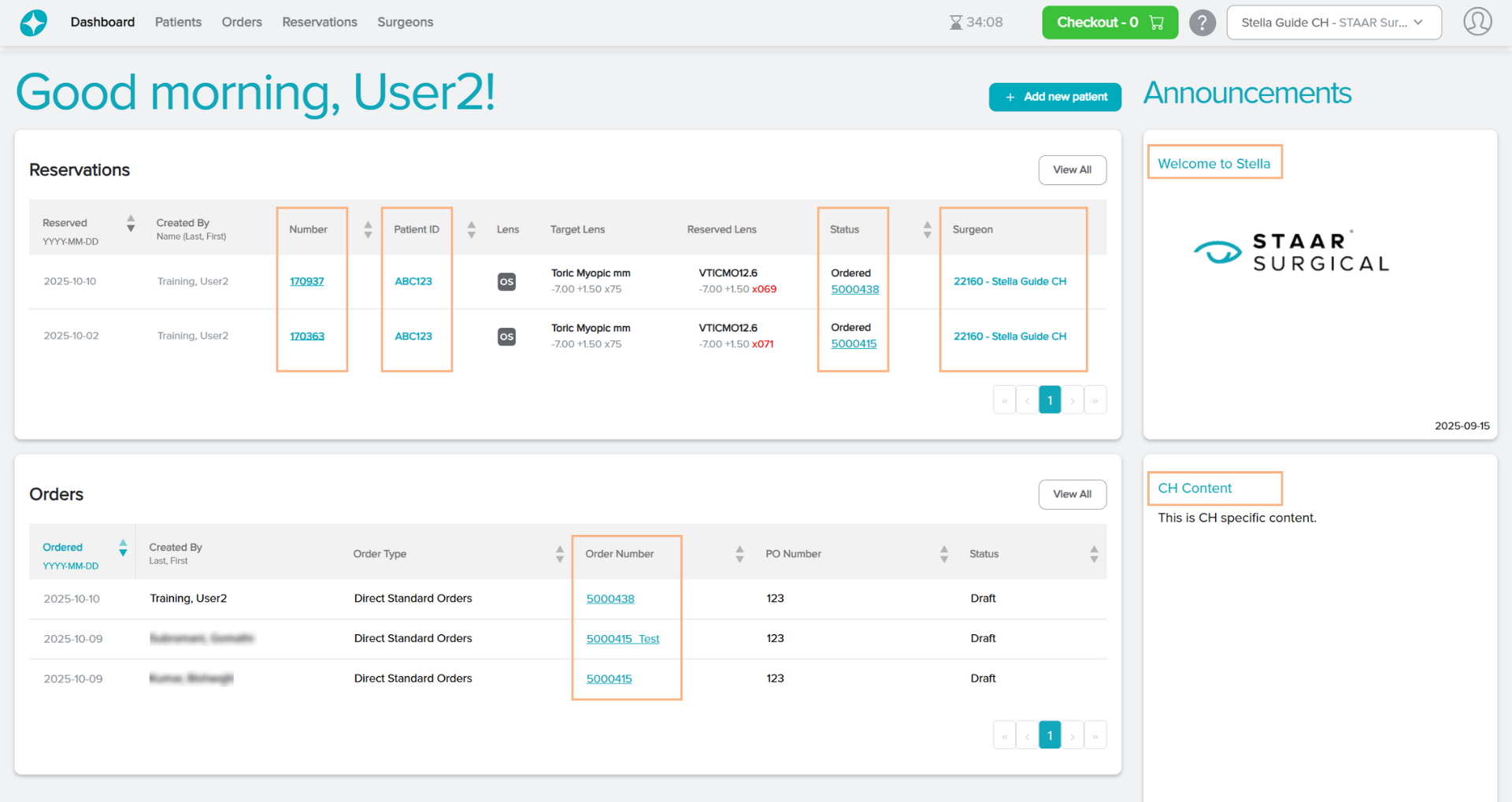
Access Detailed Pages from the Dashboard tab
The Dashboard tab contains hyperlinked texts that you can click to view more detailed information on the Announcements, Order/Reservation Details, Patient Details, or Surgeon Details.
Featured Buttons
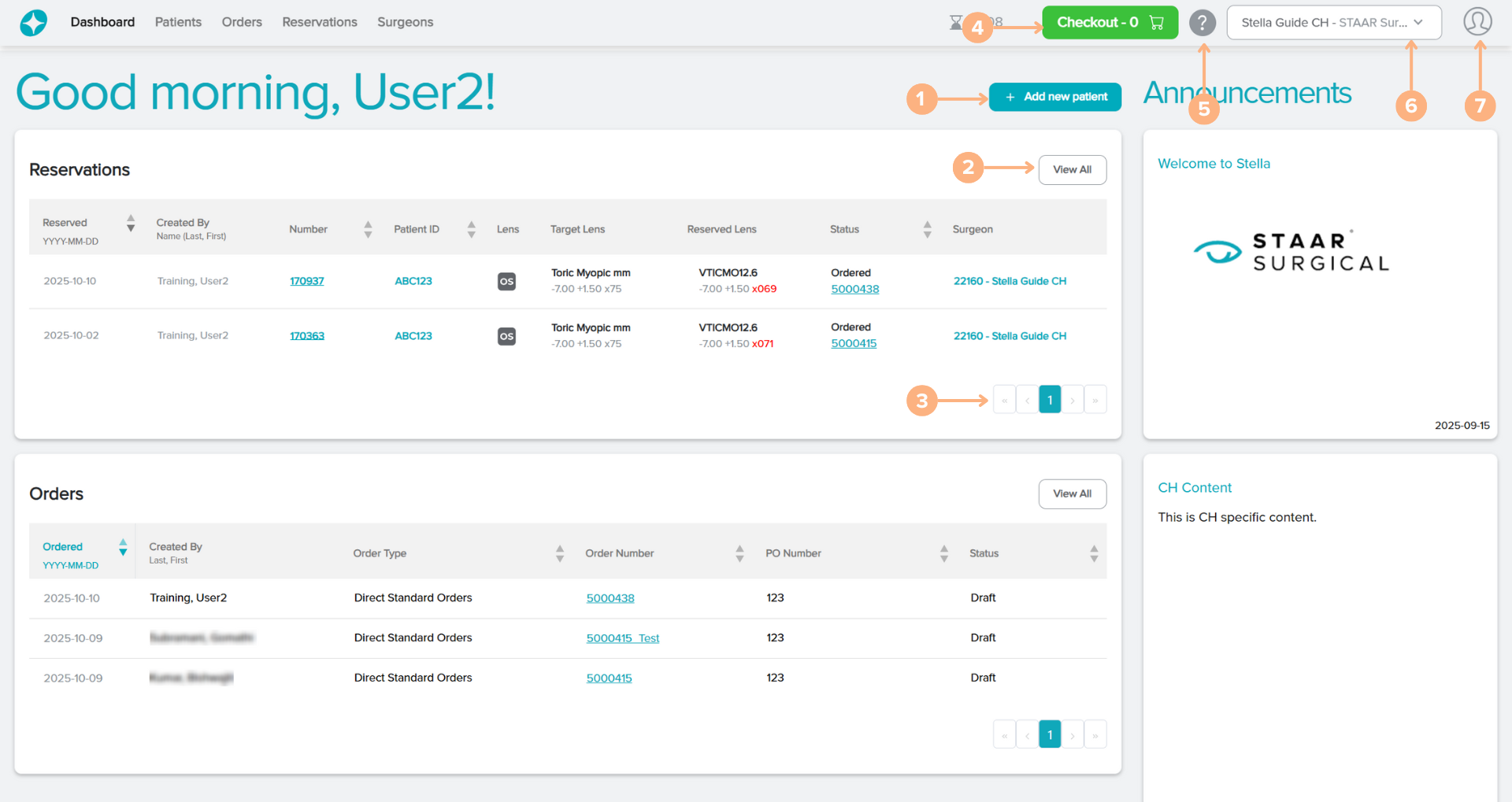
1. + Add new patient: create a new patient in the system
2. View All: redirects to the reservation/orders tab to display all items
3. Page numbers: navigate through the different pages of notifications by clicking on the page numbers or arrow buttons
4. Checkout (if applicable): access to the current shopping cart
5. Help: access to the Help Guide which navigates the Stella ICL Planning System and Calculator
6. Change customer or surgeon: select a different customer account or surgeon to view
7. Sign Out: sign out of the current account
Status Indications
On the direct customer Dashboard tab, the status indicates the placement of the lenses. The possible status are:
Reservation Notifications
- Reserved (not in cart): the reservation has been placed successfully. The lens will remain in reservation for a period of time based on your region’s agreement.
- Reserved (in cart): the lens in reservation is currently placed in the shopping cart for order.
- Ordered: the reservation has been placed for order.
- Expired: the reservation passed its expiration date.
On the surgeons who order through a distributor Dashboard tab, the status indicates the placement of the lenses. The possible status are:
Reservation Notifications
- Reserved: the reservation has been placed successfully. The lens will remain in reservation for a period of time based on your region’s agreement.
- Expired: the reservation passed its expiration date.
- Canceled: the reservation is canceled.
Order Notifications
- Ordered: the order is placed
- Draft: the order is placed and has received a Stella Order Number
- Credit Review Pending *if applicable: occurs if the cost exceeds the account’s credit limit
- Processing: the customer service team is working on the order
- Shipped: the entire order has been shipped
- Partially Shipped *if applicable: part of the order has been shipped
- Closed: shipped orders have been picked up
- Canceled: the order has been canceled
On the distributor Dashboard tab, the status indicates the placement of the lenses. The possible status are:
Reservation Notifications
- Reserved (not in cart): the reservation has been placed successfully. The lens will remain in reservation for a period of time based on your region’s agreement.
- Pre-Ordered (not in cart): the lens is pre-ordered but is not in the cart or a lens has been removed from the shopping cart.
- Pre-Ordered (in cart): the pre-ordered lens is in the cart or a distributor added a reservation to the cart.
- Ordered: the reservation has been placed for order.
- Expired: the reservation passed its expiration date.
- Canceled: the reservation is canceled