Sort and Search Patients
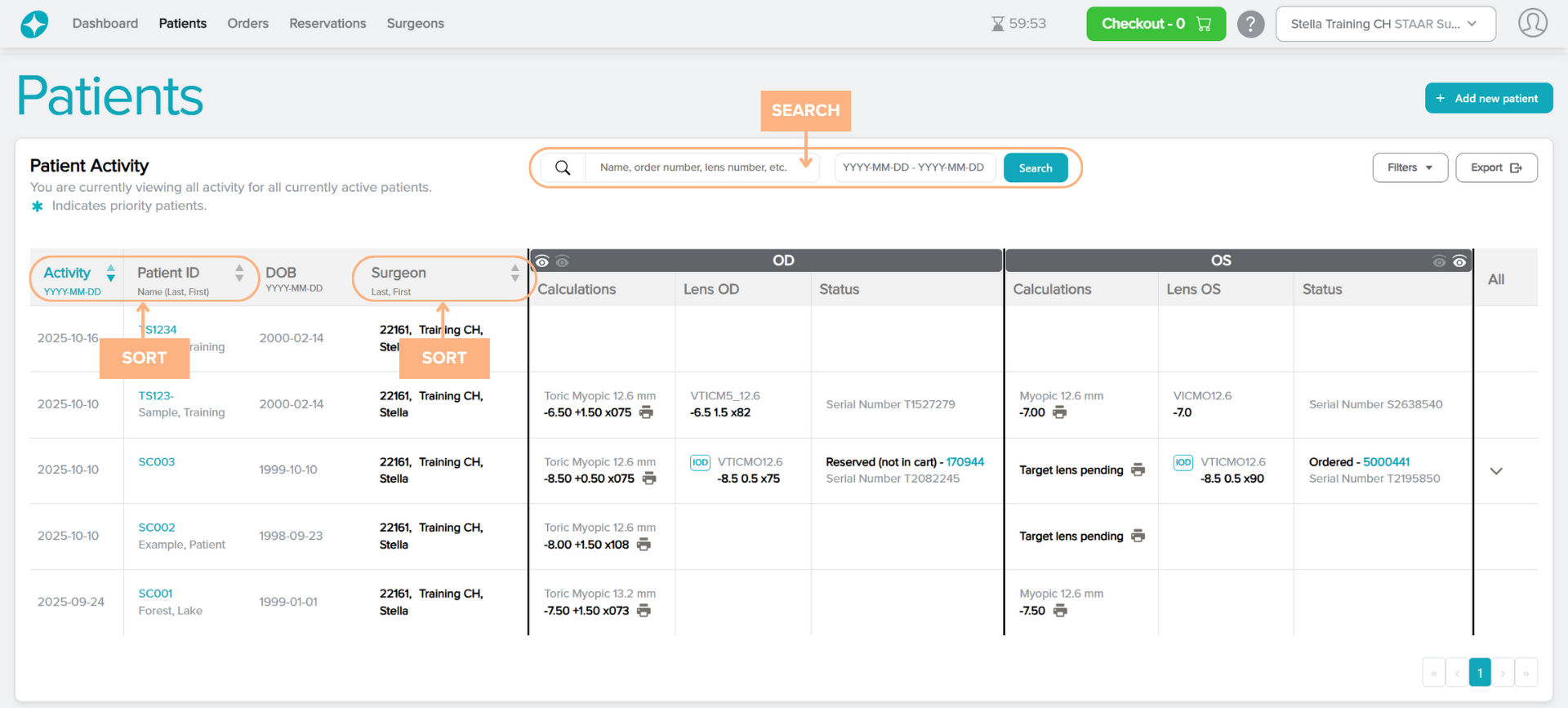
By default, the Patient Activity is sorted by most recent activity at the top. There is an option to sort the list in ascending or descending order by clicking on the text or the corresponding arrow for the following categories:
- Activity Date
- Patient ID
- Surgeon
To search for a specific patient, click on the search box and use parameters such as Name (if available), Order number, Lens number, etc. The page will display the associated patient that fits the entered parameter.
You can also filter a range of dates to display on the page by clicking on the date box and selecting the desired dates.
Access Detailed Pages from the Patients tab
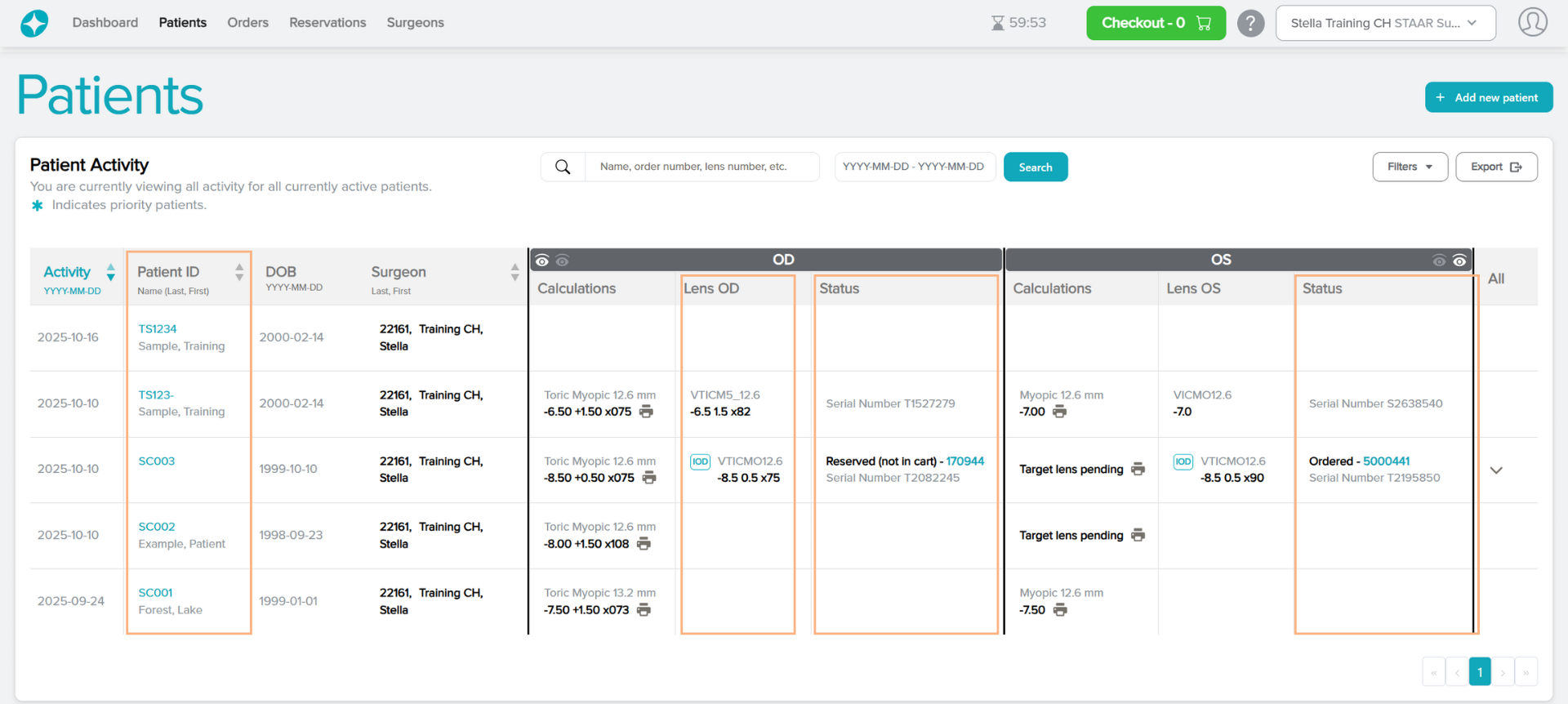
The Patients tab contains hyperlinked texts that you can click to view more detailed information on the Patient Details, IOD/SID or Order/Reservation Details.
Featured Buttons
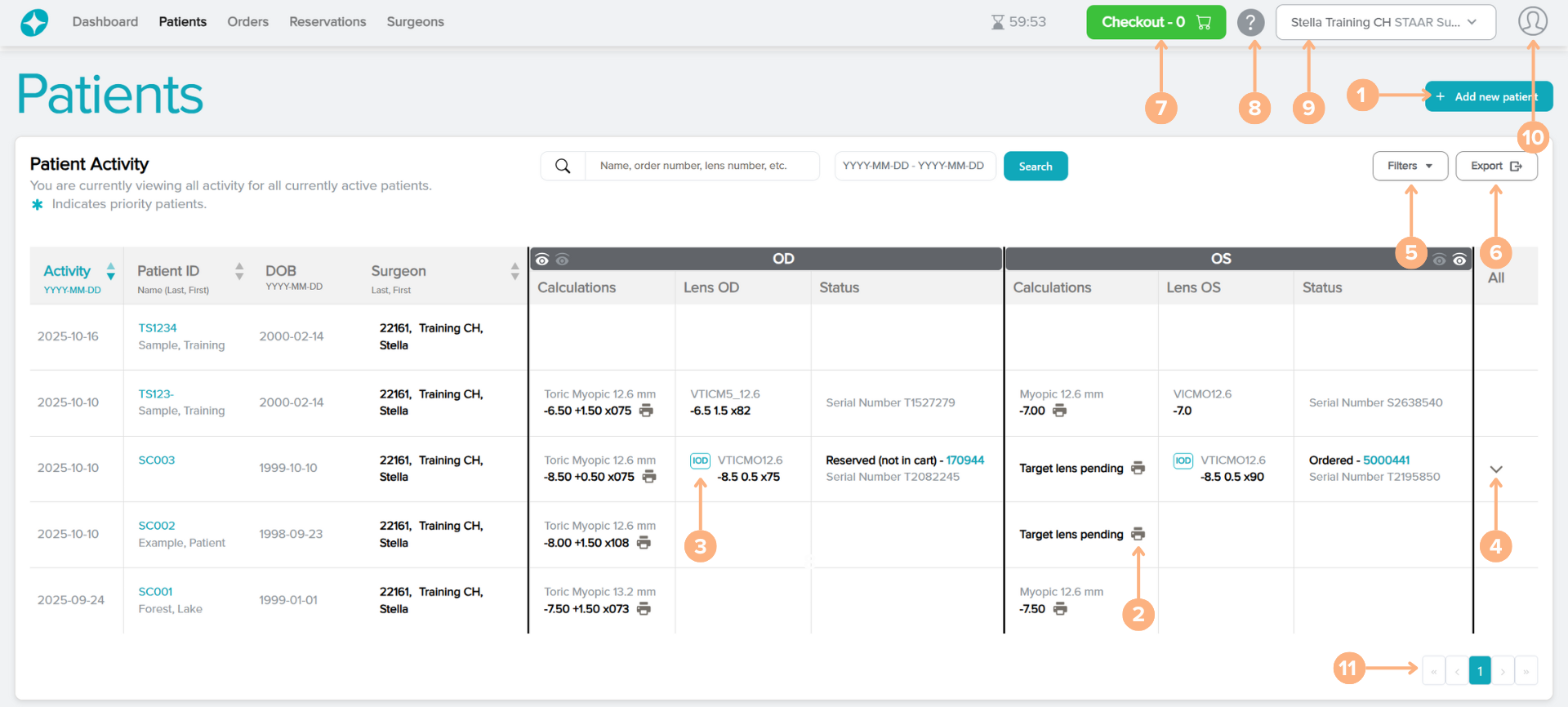
1. +Add new patient: create a new patient from this screen
2. Print: generate the Calculation/Order report
3. IOD/SID: prompt the IOD/SID screen pop-up. From the screen, you can generate the IOD/SID
4. View All Arrow: expand the section to view all the information for patients with multiple lenses or order information
5. Filters: filter the patient list based on surgeon (if the user is logged in as a customer account with multiple surgeons), creator name, lens status and/ or patient status
6. Export: generate an Excel report of the patient activity
7. Checkout (if applicable): access to the current shopping cart
8. Help: access to the Help Guide which navigates the Stella ICL Planning System and Calculator
9. Change customer or surgeon: select a different customer account or surgeon to view
10. Sign Out: sign out of the current account
11. Page numbers: navigate through the different pages of patient activity by clicking on the page numbers or arrow buttons