Sort and Search Orders
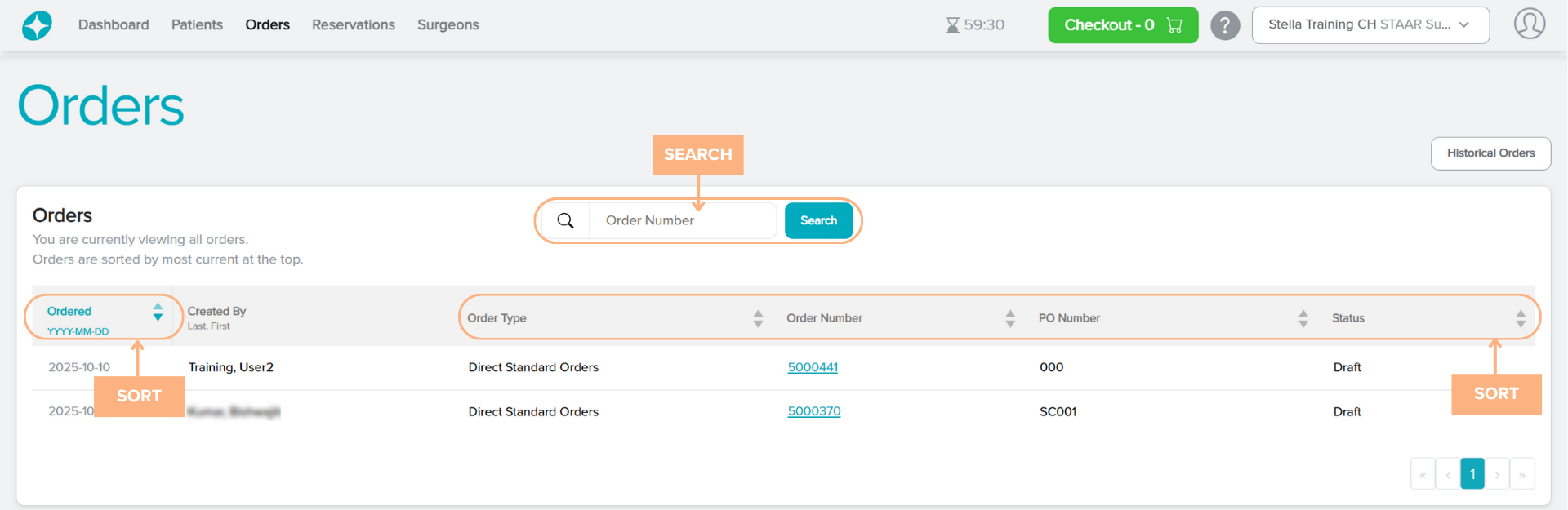
By default, the Orders are sorted by most current at the top. There is an option to sort the list in ascending or descending order by clicking on the text or the corresponding arrow for the following categories:
- Ordered Date
- Order Type
- Order Number
- PO Number
- Status
To search for a specific order, click on the search box and use the parameter Order number. The page will display the associated order that fits the entered parameter.
Access Detailed Pages
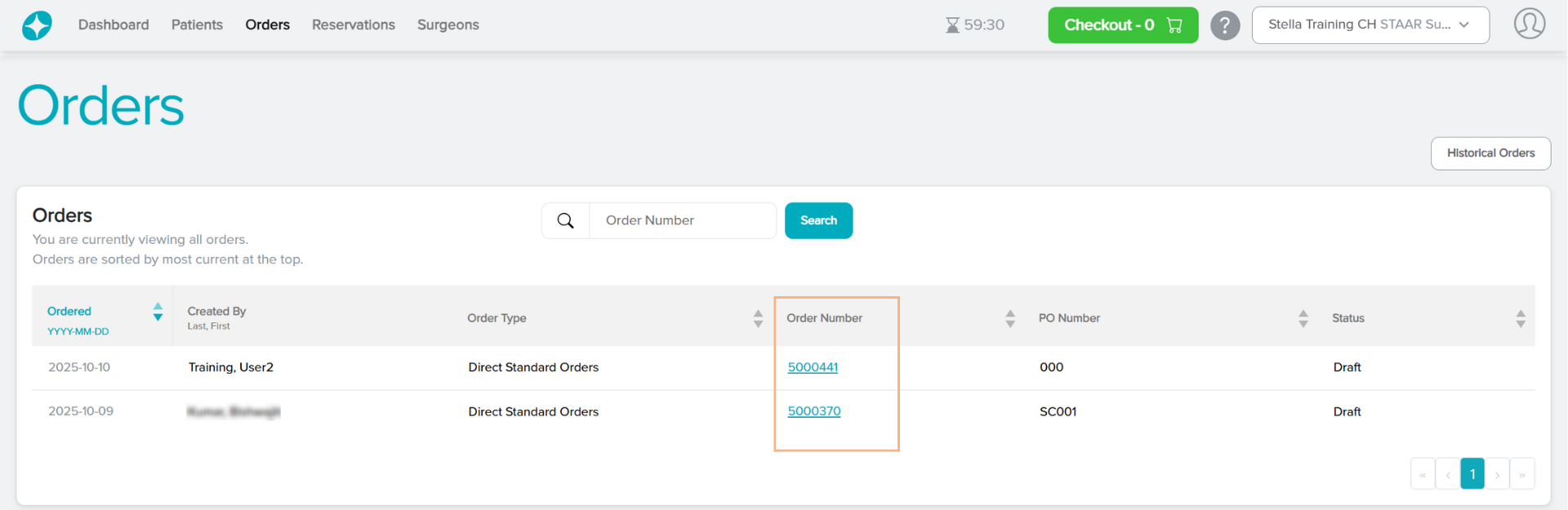
The Orders tab contains hyperlinked text that you can click to view more detailed information on the Order Details.
Featured Buttons
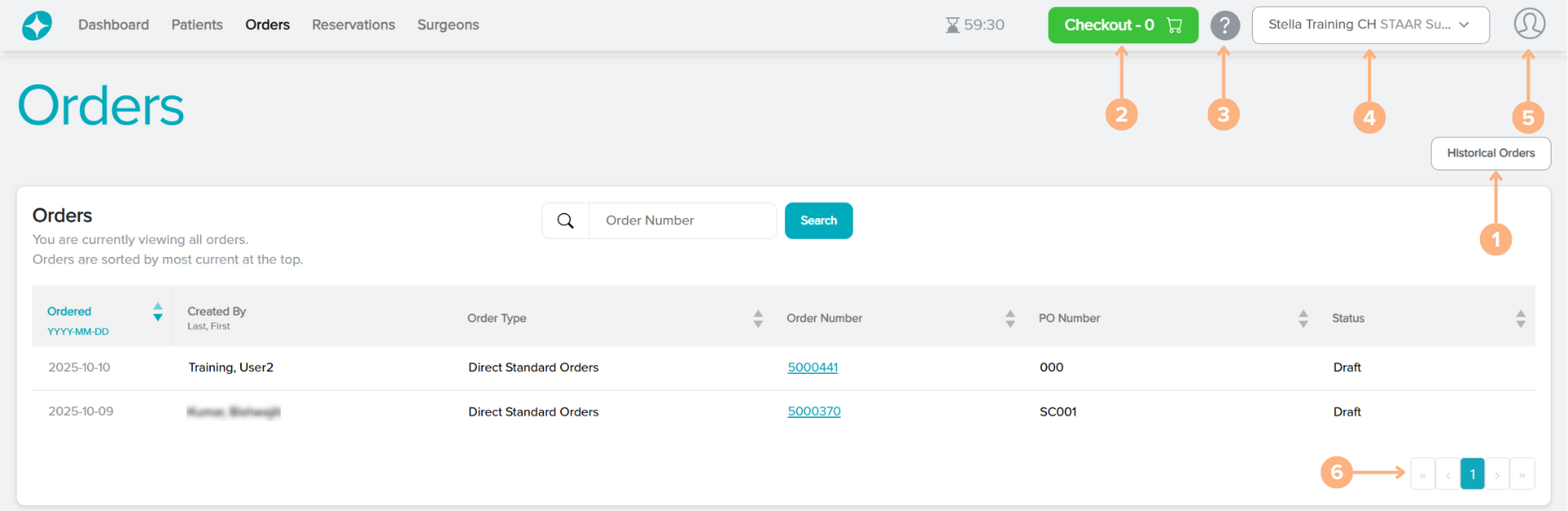
1. Historical Orders: view orders from the past 3 years that were placed in our legacy systems, Stella 1.0 or OCOS
Note: Please contact your customer service team for orders placed prior to 2023.
2. Checkout (if applicable): access to the current shopping cart
3. Help: access to the Help Guide which navigates the Stella ICL Planning System and Calculator
4. Change customer or surgeon: select a different customer account or surgeon to view
5. Sign Out: sign out of the current account
6. Page numbers: navigate through the different pages of orders by clicking on the page numbers or arrow buttons
Status Indications
- Ordered: the order is placed
- Draft: the order is placed and has received a Stella Order Number
- Credit Review Pending *if applicable: occurs if the cost exceeds the account’s credit limit
- Processing: the customer service team is working on the order
- Shipped: the entire order has been shipped
- Partially Shipped *if applicable: part of the order has been shipped
- Closed: shipped orders have been picked up
- Canceled: the order has been canceled