How to Reserve Lenses
After selecting and saving a target lens from the target lens selection screen, you can access the Inventory Lookup and select a lens to Reserve, Add to Cart, or Manufacture. If you are not ready to order a lens for purchase, you may reserve a lens:
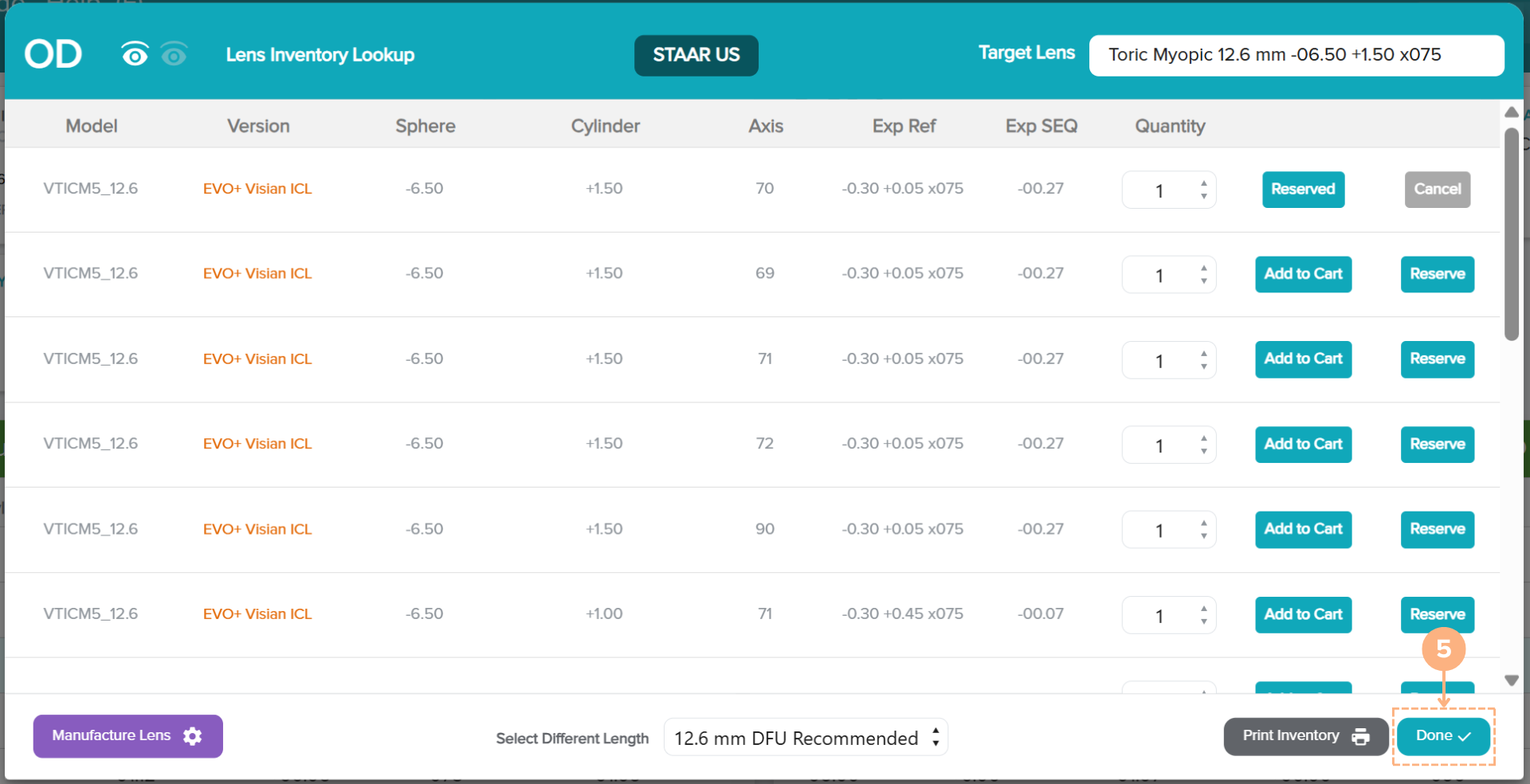
- Click on the Inventory Lookup button. You may view the inventory lookup for either eye, one at a time (if applicable).
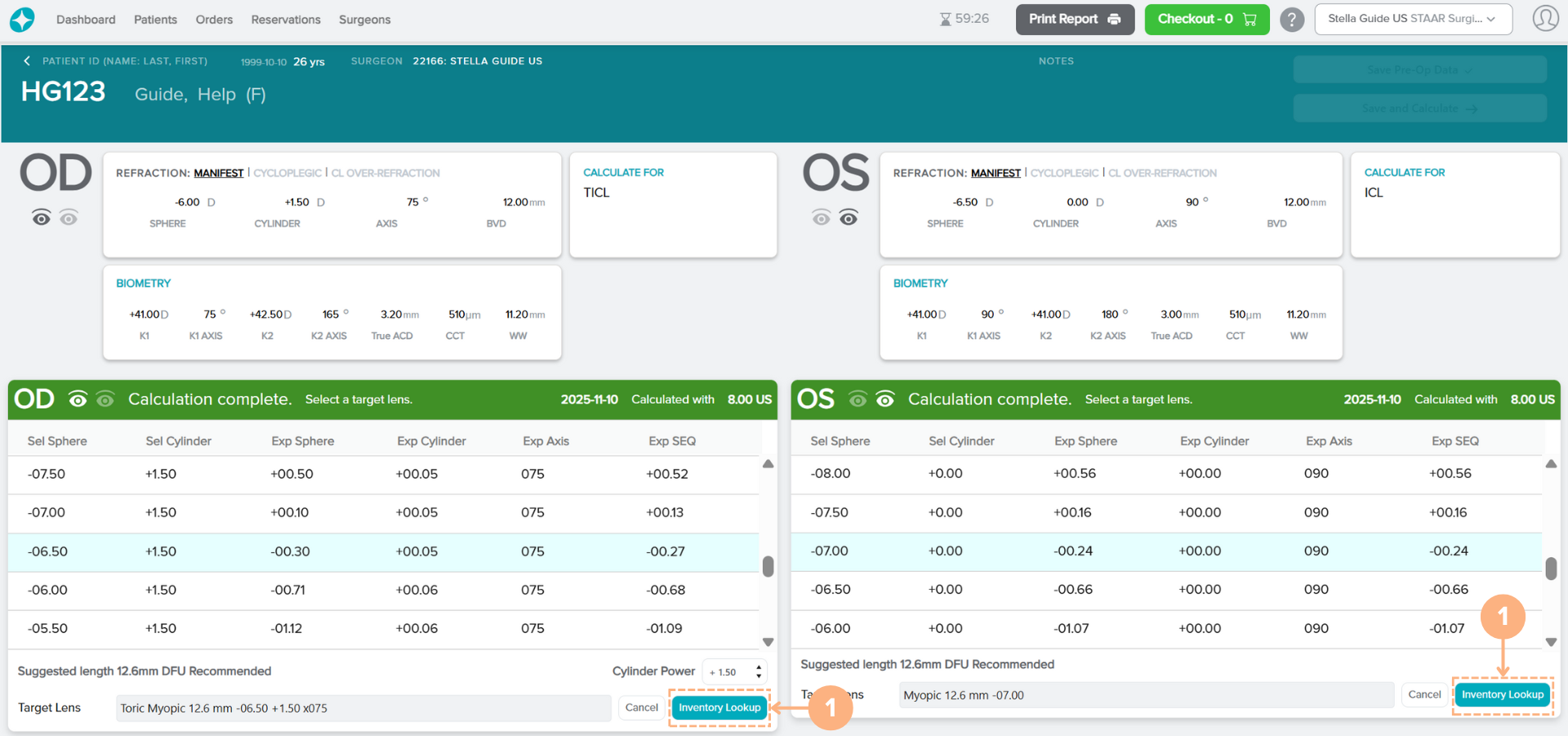
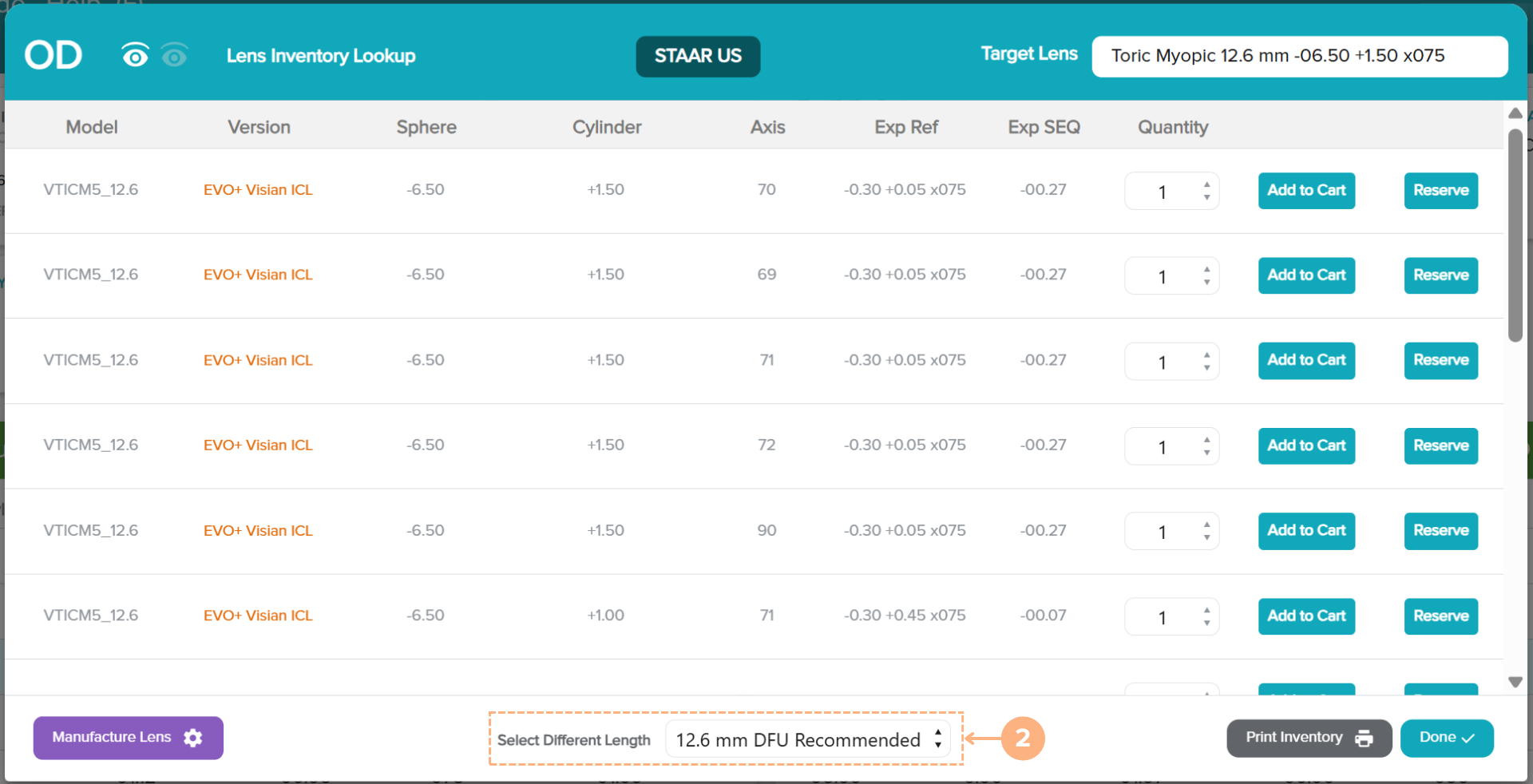
Confirm or select a different target lens length. Please keep in mind that a different target lens length may be selected but constitutes use outside of the DFU recommendations. To change the target lens length selection, click on the Select Different Length drop-down button and select the desired length.
Note: If a different target lens length is selected, a new set of EVO ICL lenses with the new calculated powers and expected post-op outcomes will be displayed.
- Select the Quantity.
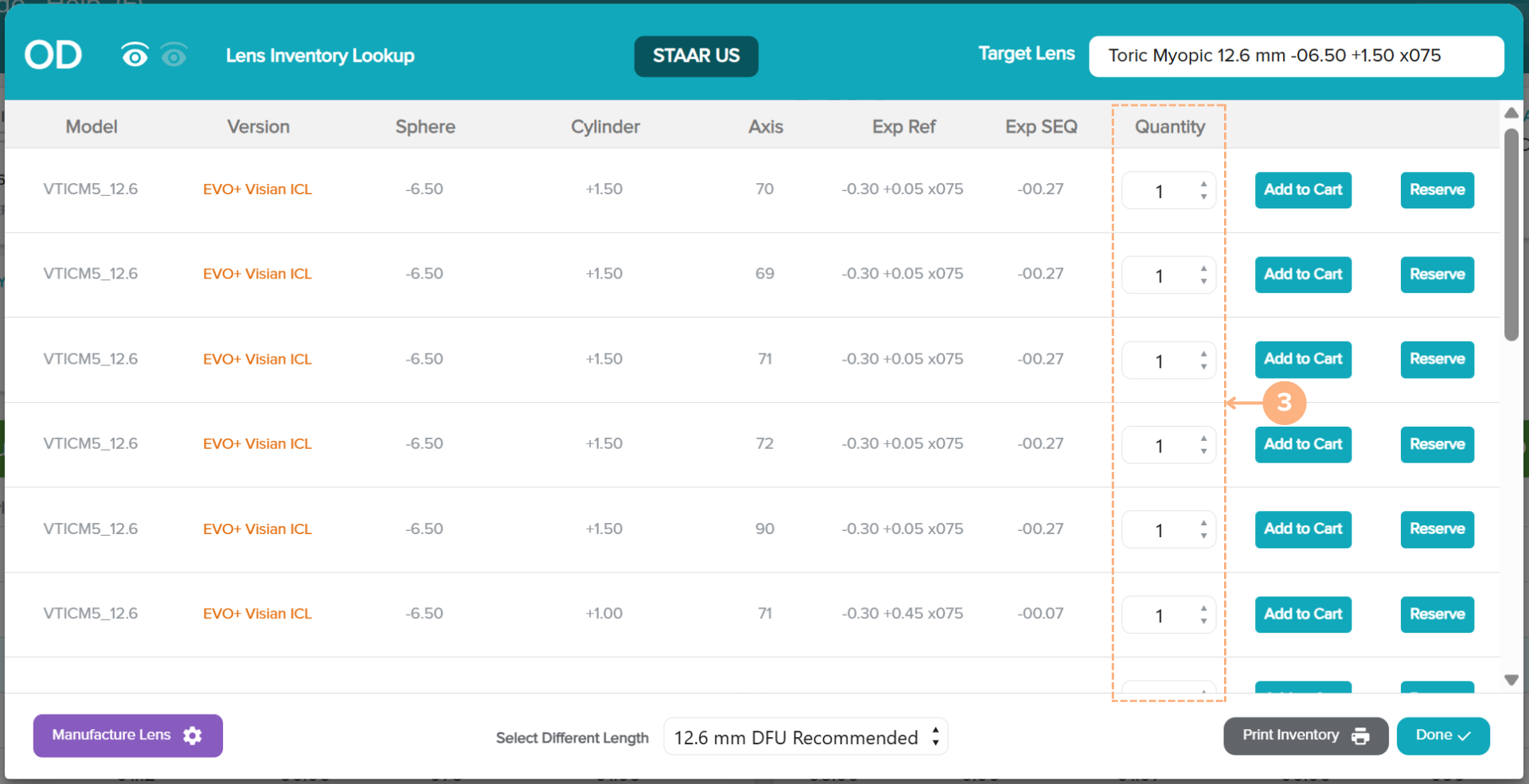
Please note that the available quantity varies based on customer settings, and number of lenses with the same lens specifications available in inventory
- Click on the Reserve button of the desired lens.
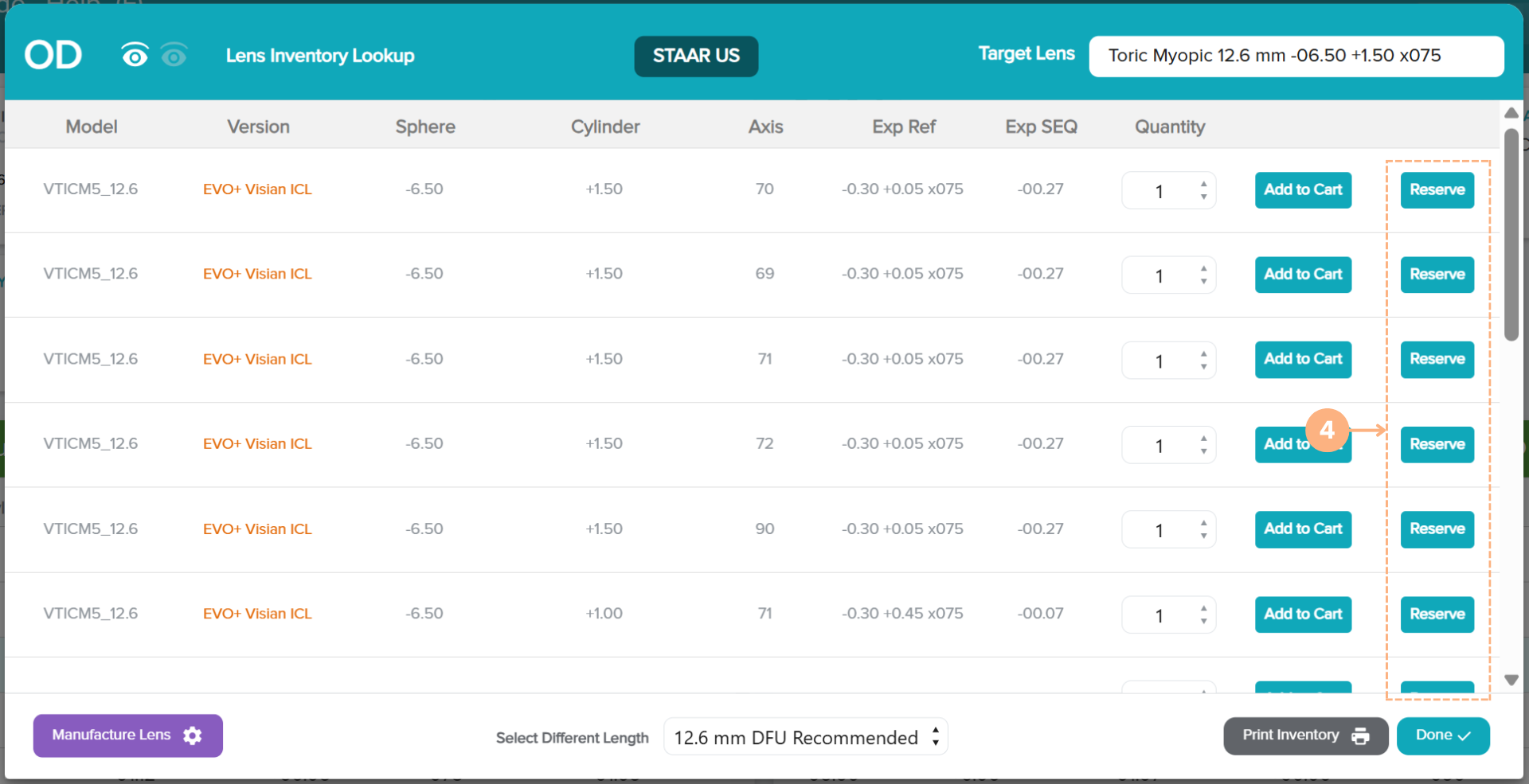
- After selecting all desired lenses, click on the Done button.
Follow the same steps above if reserving for the other eye.
Clicking Done places the reservation and locks the calculation for that operative eye.
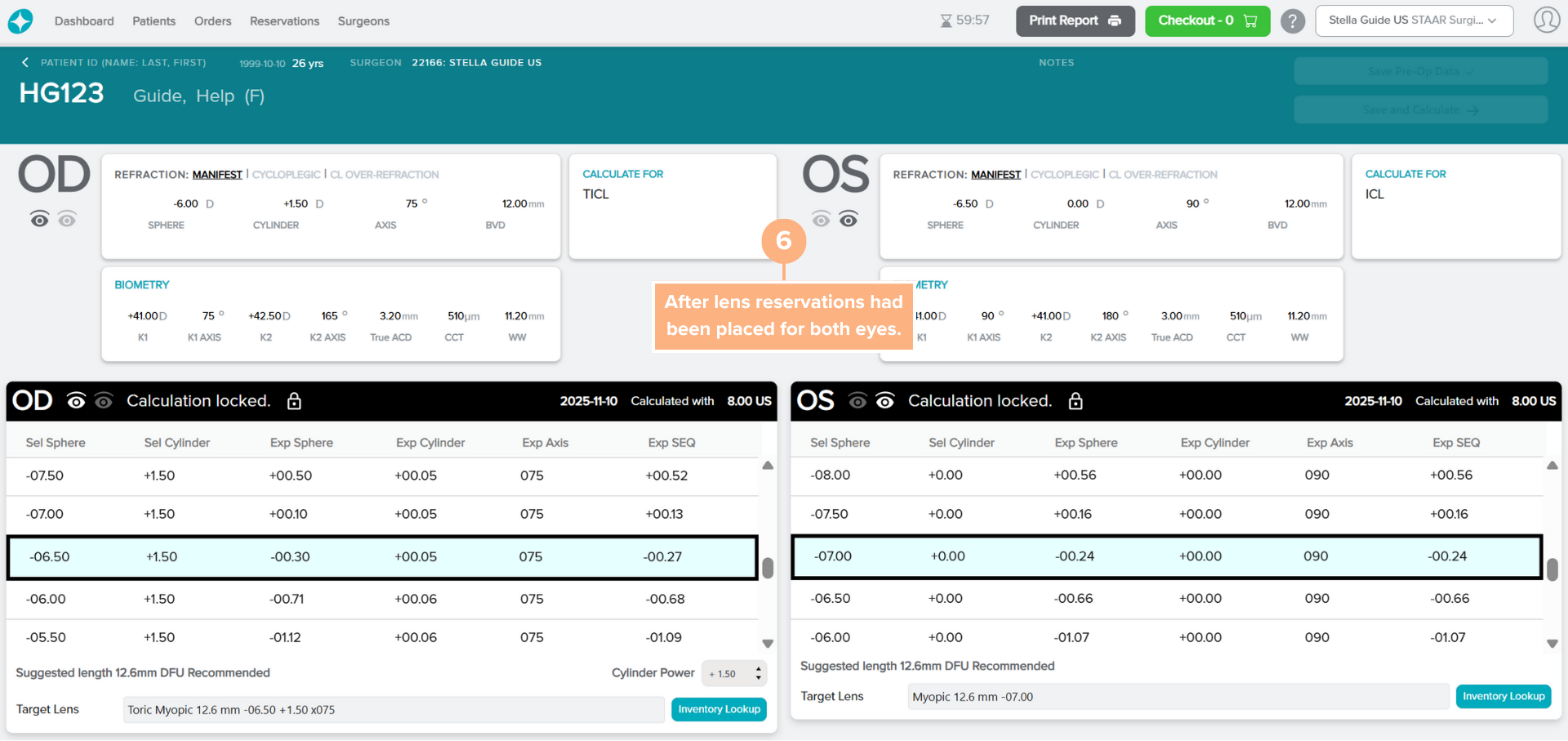
Once a calculation is locked, you can no longer make changes to the lens calculation. An email reservation confirmation will be sent to you for your placed reservation. The lens remains in reservation for up to seven days. You will also receive reminder emails during the duration of while the lens remains in reserve.
Note: Although the calculation is locked, you can still view the Lens Inventory Lookup screen by clicking on the View Inventory button.
Multiple Lens Selection Note: If you have not reached the maximum lens limit, you can still select additional lenses to Reserve, Add to Cart, or Manufacture through the View Inventory button.
How to View the Expiration Date of Reservations
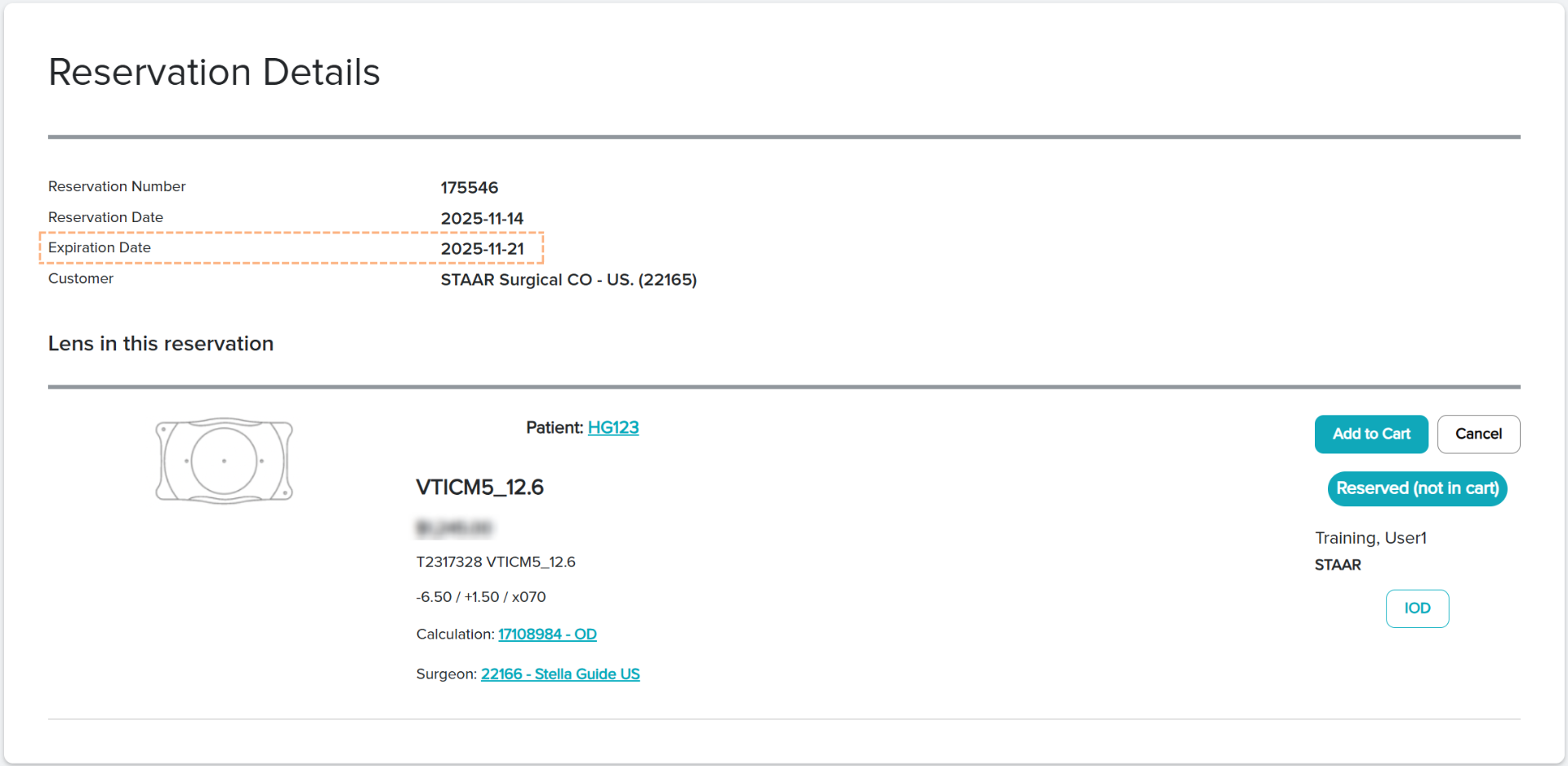
Lens placed for reservation remains in reservation for up to seven days. To view the exact expiration date of your lens reservation, refer to the lens Reservation Details page.
The Reservation Details page is accessible by clicking the Reservation Number found in several places:
- Dashboard tab under Reservation notifications
- Patients tab under Status
- Patient Details page under LENS / SURGERY INFO or RESERVATIONS
- Reservations tab
If the reserved lens is not ordered by the expiration date, the reservation will be automatically canceled and the lens will be placed back in the inventory.
How to Add Reserved Lenses to the Shopping Cart
When you are ready to place your lens reservation for order, you can add the reserved lenses to cart from the Reservations tab or Reservation Details page.
Add your Reserved Lens to cart under the Reservation Tab
- On the Reservations List, locate the correct reservation. You may utilize the search box and filter button to make your search easier.
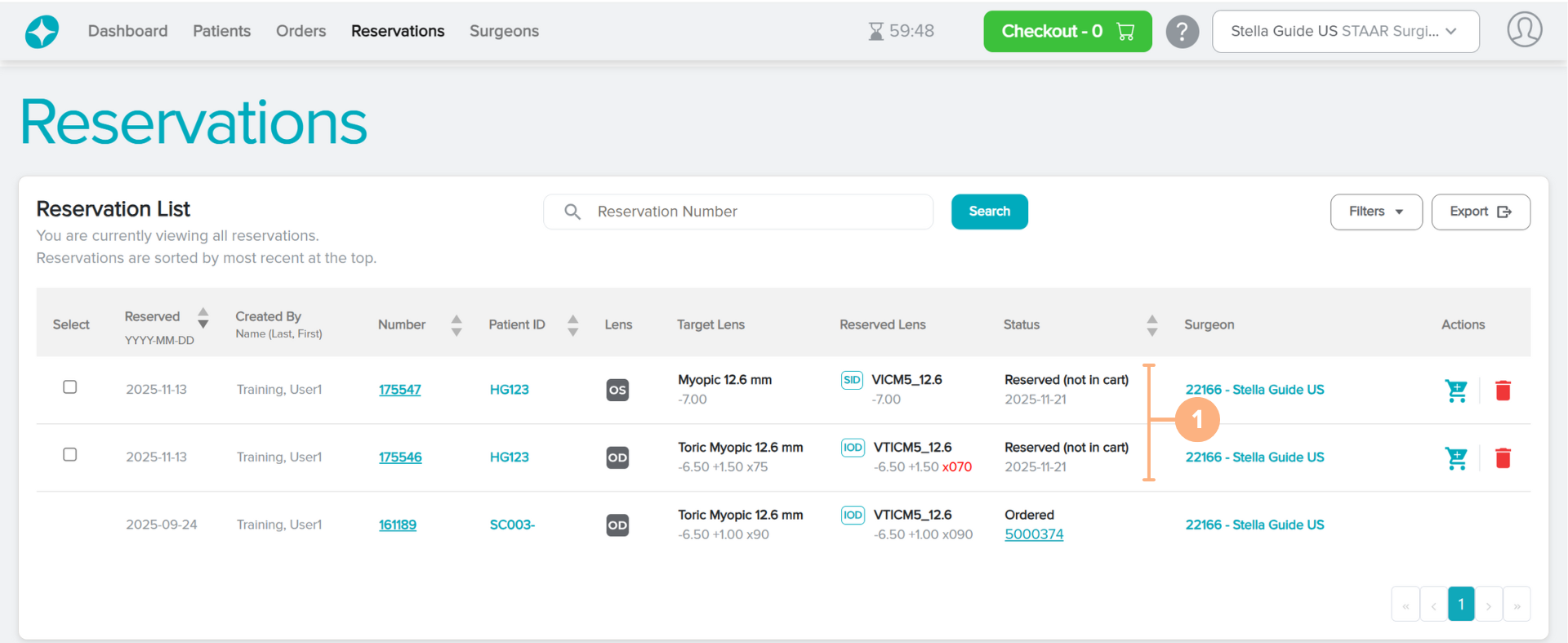
Under Actions, click on the Add to Cart (blue shopping cart) button.
You may also select multiple lenses to add to cart at once by using the Select tool.
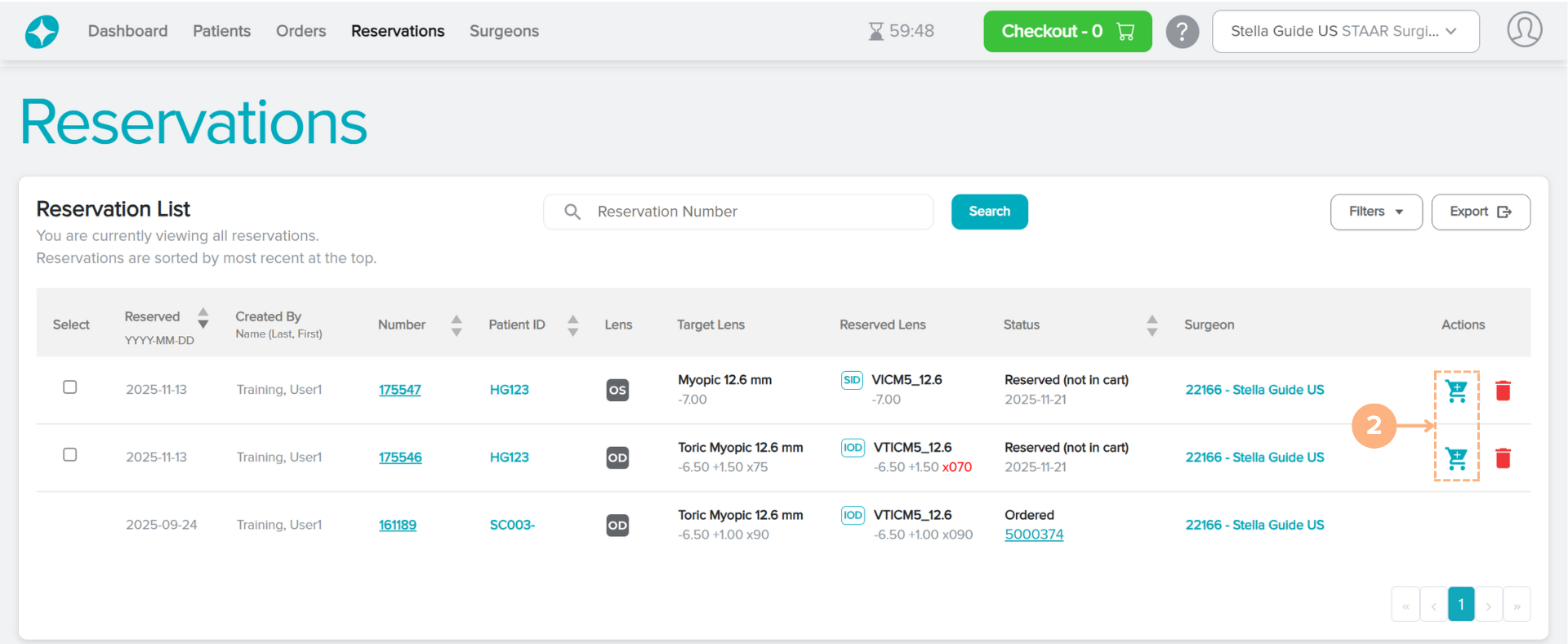
The shopping cart automatically populates with the reserved lenses that you added to the cart. To proceed to the shopping cart, refer to How to Access the Shopping Cart. Then to checkout, refer to How to Checkout your Lenses.
Add your Reserved Lens to Cart under the Reservation Details Page
- Verify that the lens listed is the correct lens in the reservation that you would like to add to cart.
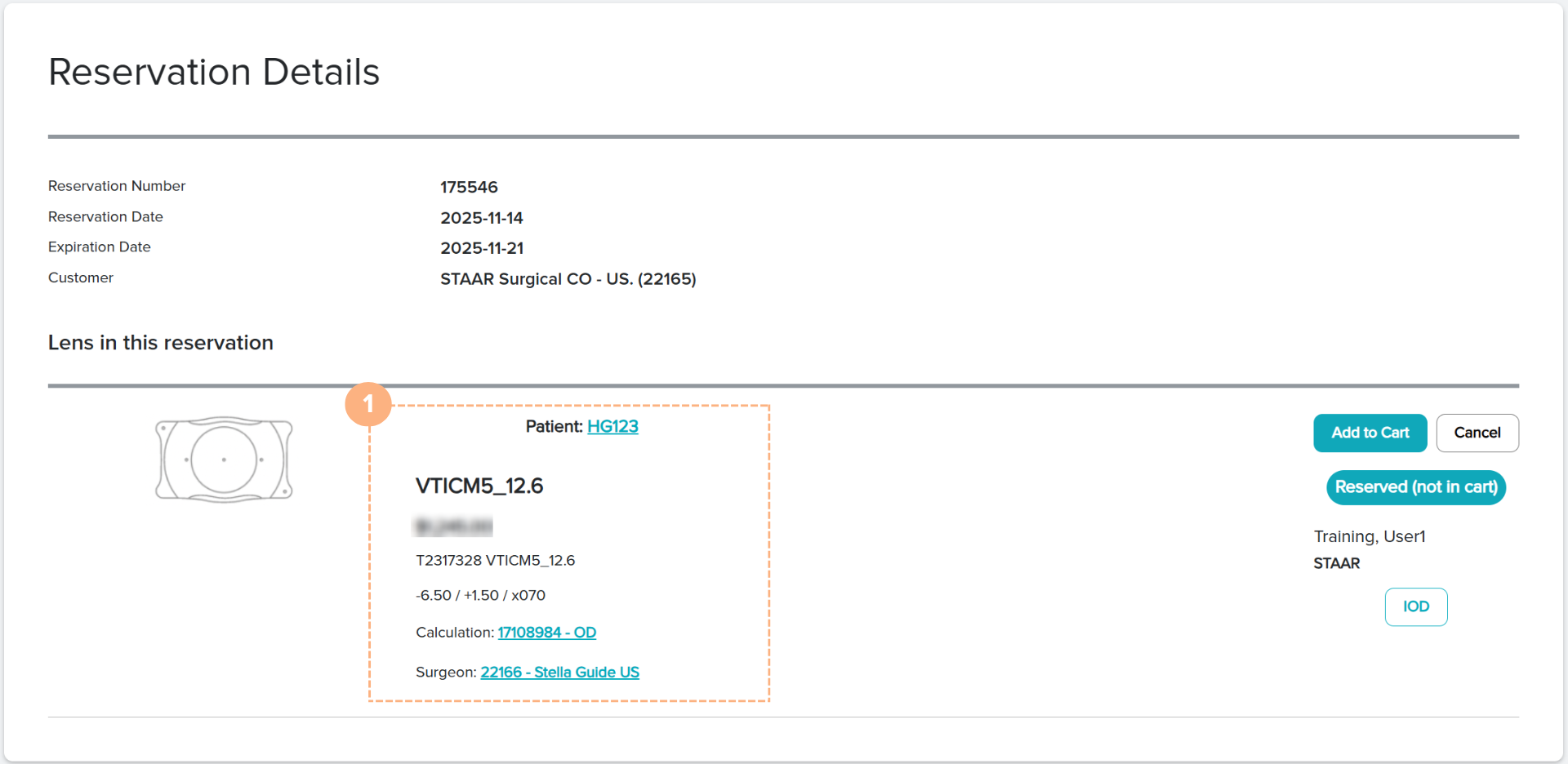
- Click on the Add To Cart button.
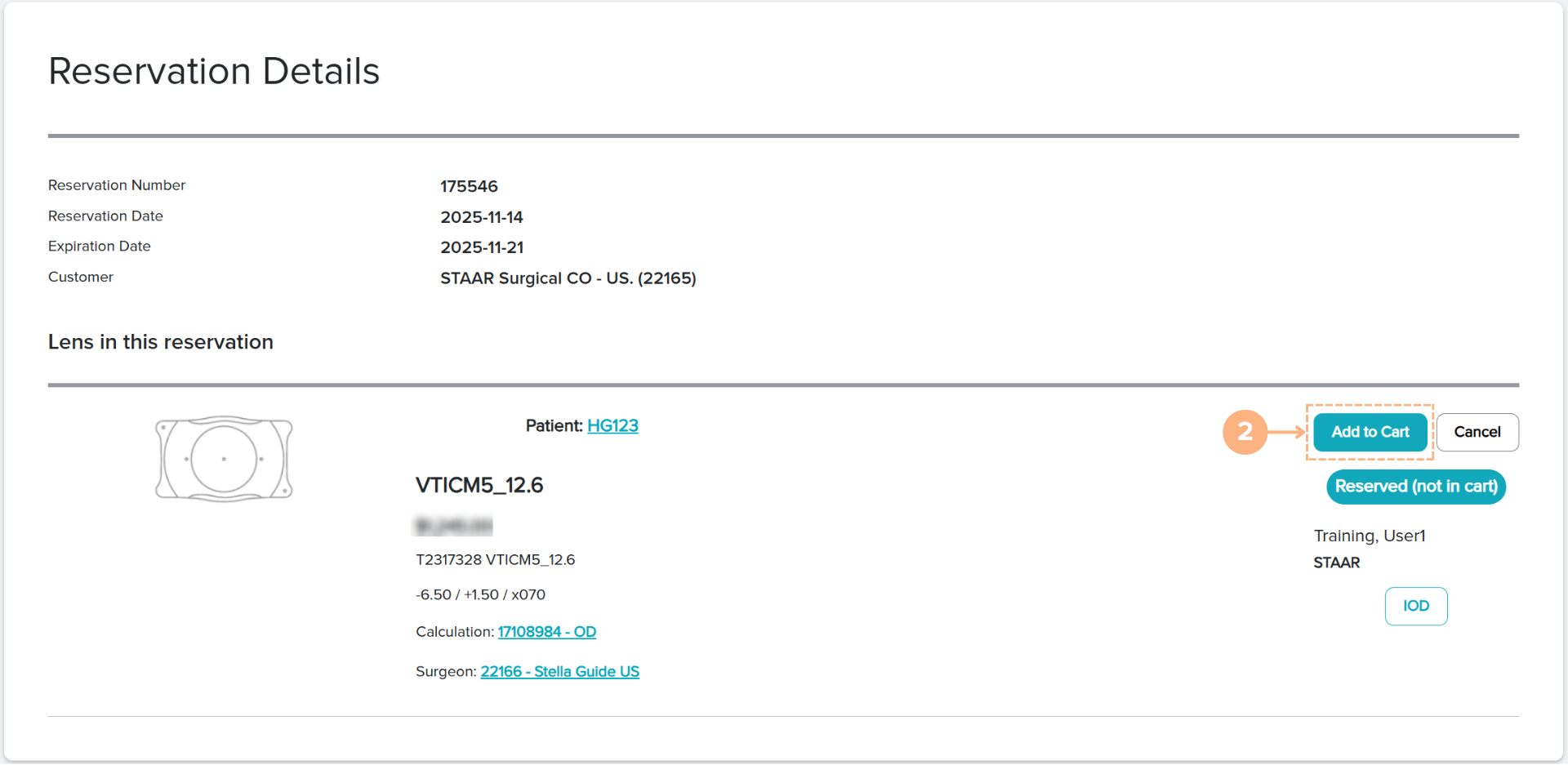
The shopping cart automatically populates with the reserved lens that you added to the cart. To proceed to the shopping cart, refer to How to Access the Shopping Cart. Then to checkout, refer to How to Checkout your Lenses.
How to Cancel Lens in Reservation
If you are no longer interested in ordering a reserved lens, you can cancel the lens in reservation from the Reservations tab or the Reservation Details page.
Cancel Reserved Lens under the Reservations Tab
- On the Reservations List, locate the correct reservation. You may utilize the search box and filter button to make your search easier.
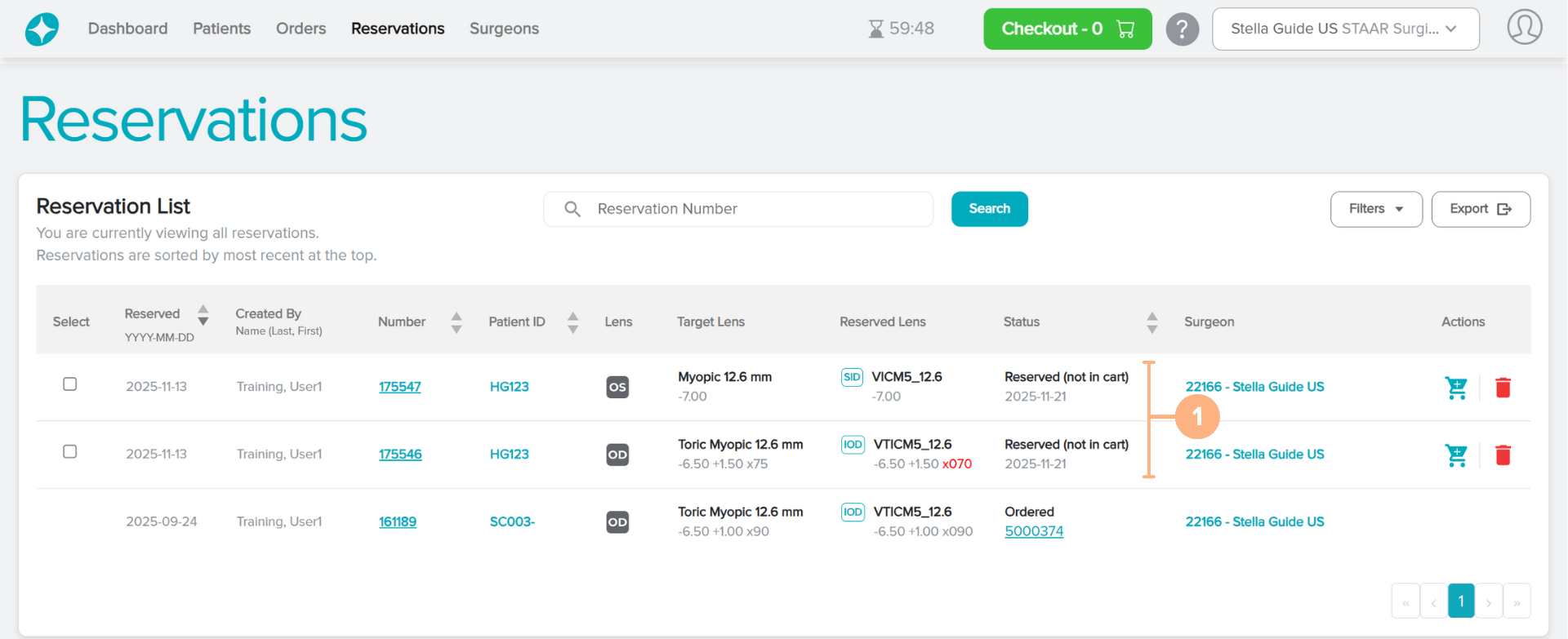
Under Actions, click on the Cancel reservation (red trash can) button.
You may also select multiple lenses to cancel at once by using the Select tool.
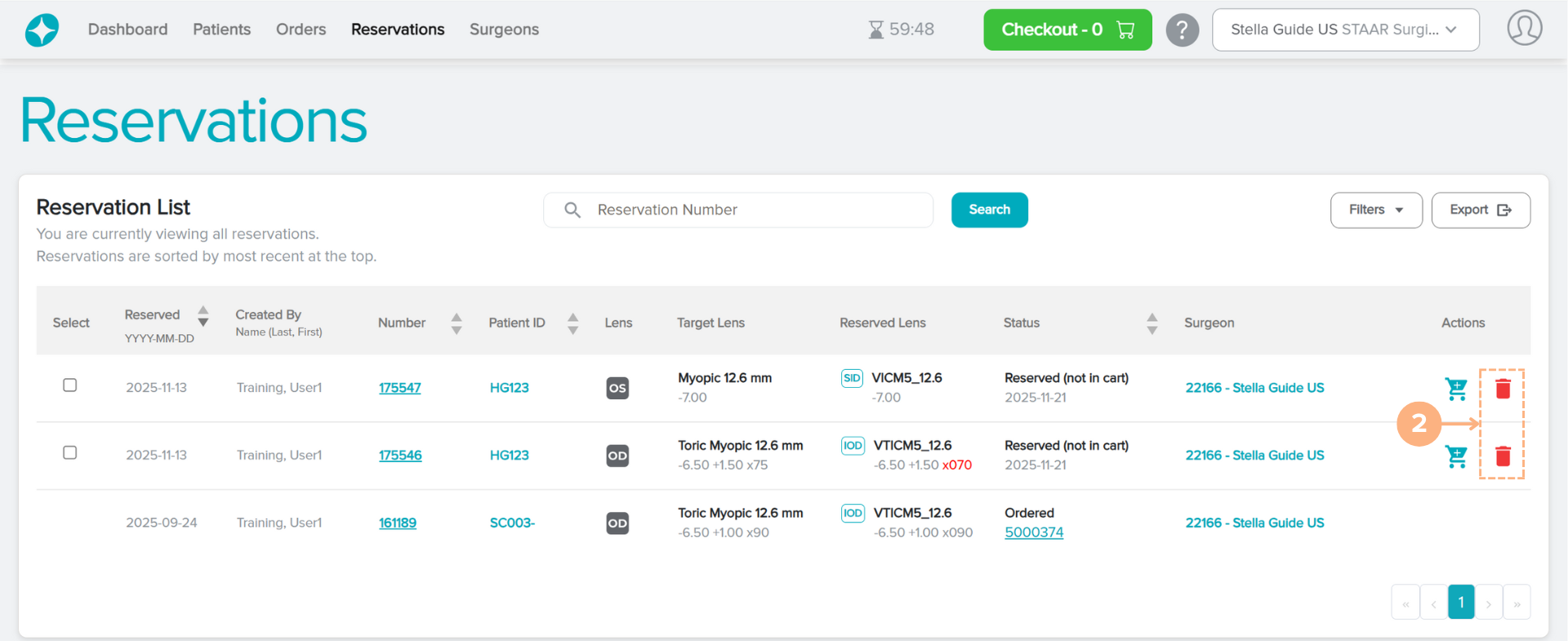
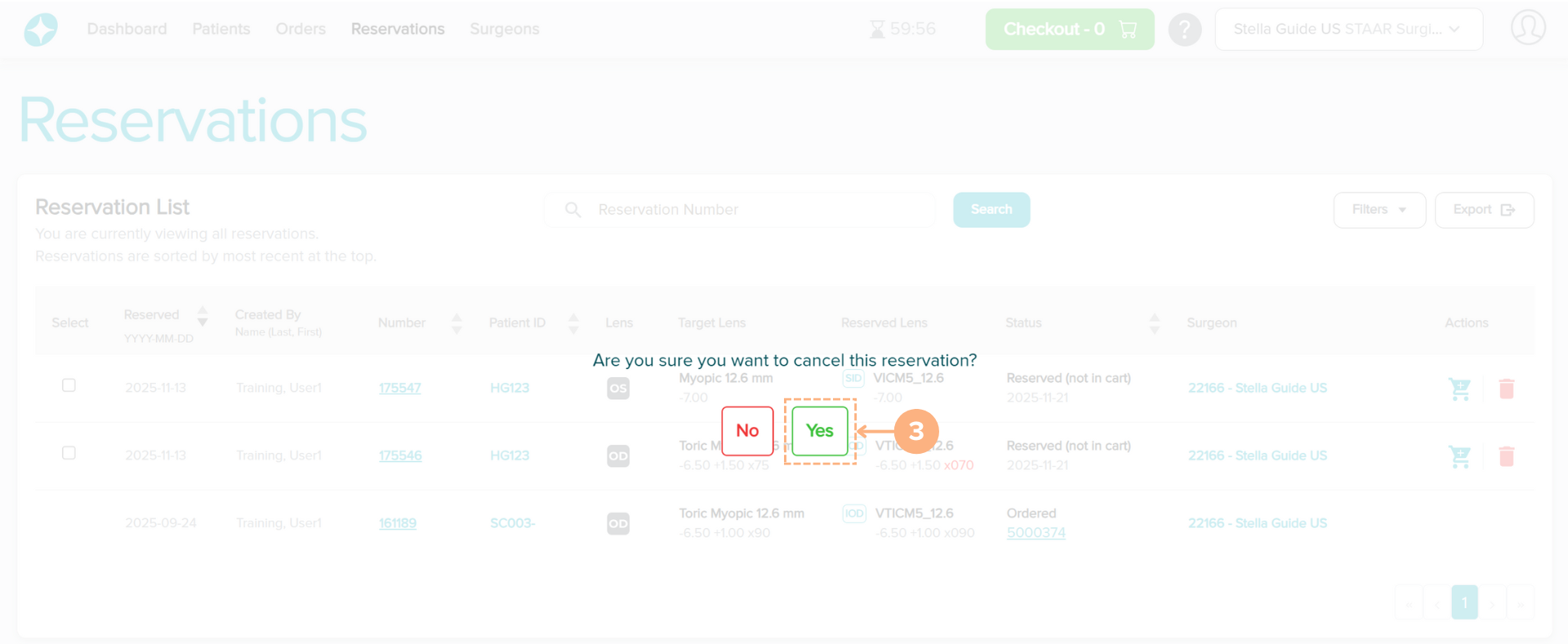
Click “Yes” to confirm the cancelation.
Note: To abandon the cancelation, click “No.”
The canceled lens is removed from the Reservations List. However, you may view the canceled reservation history by clicking on the Filters button, toggling on “Show Canceled,” and clicking “Apply” for the filters. The patient’s full reservation history is also accessible on the Patient Details page under RESERVATIONS.
Cancel Reserved Lens under the Reservation Details Page
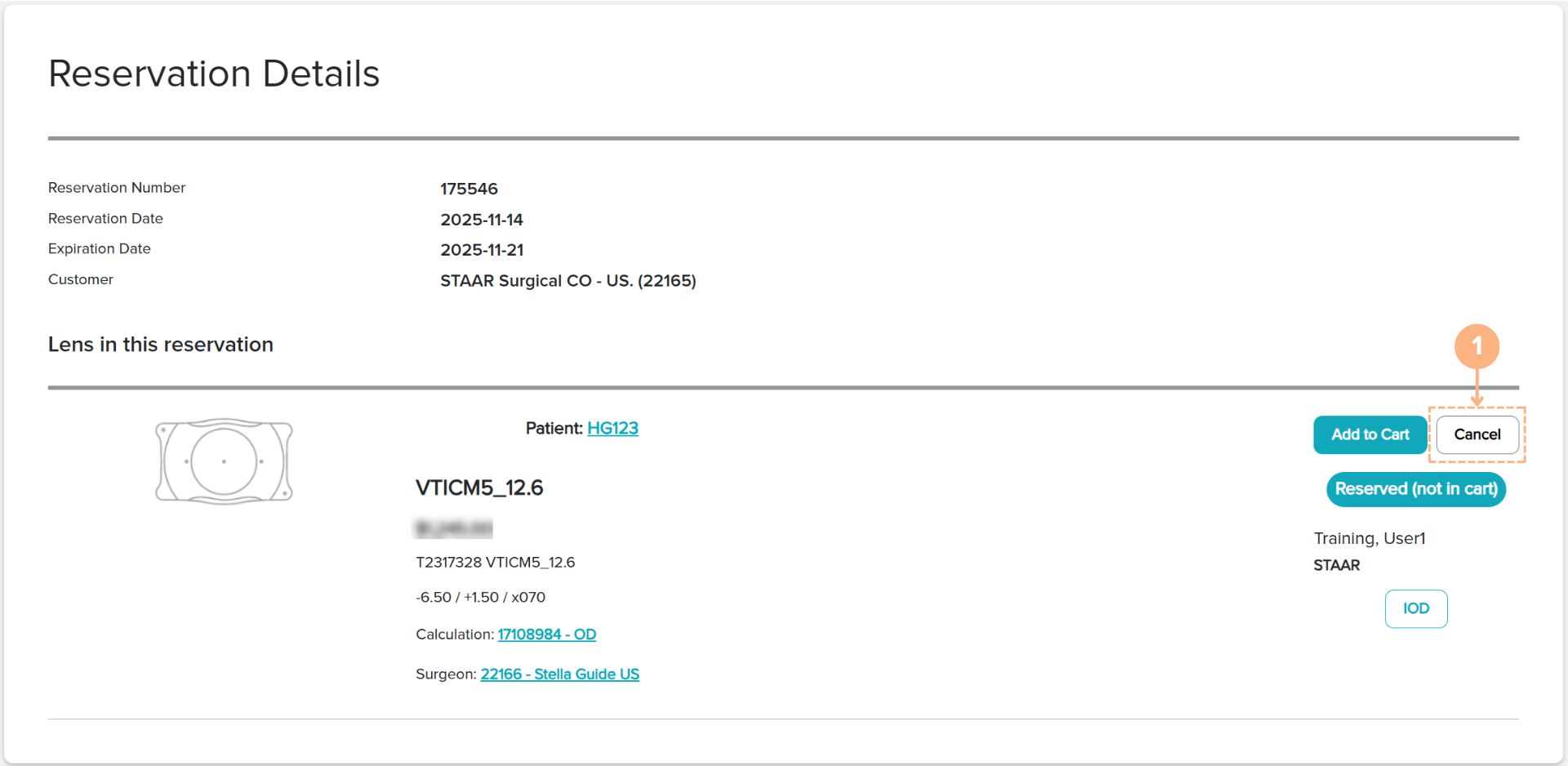
- On the Reservations Details page, click on the Cancel button.
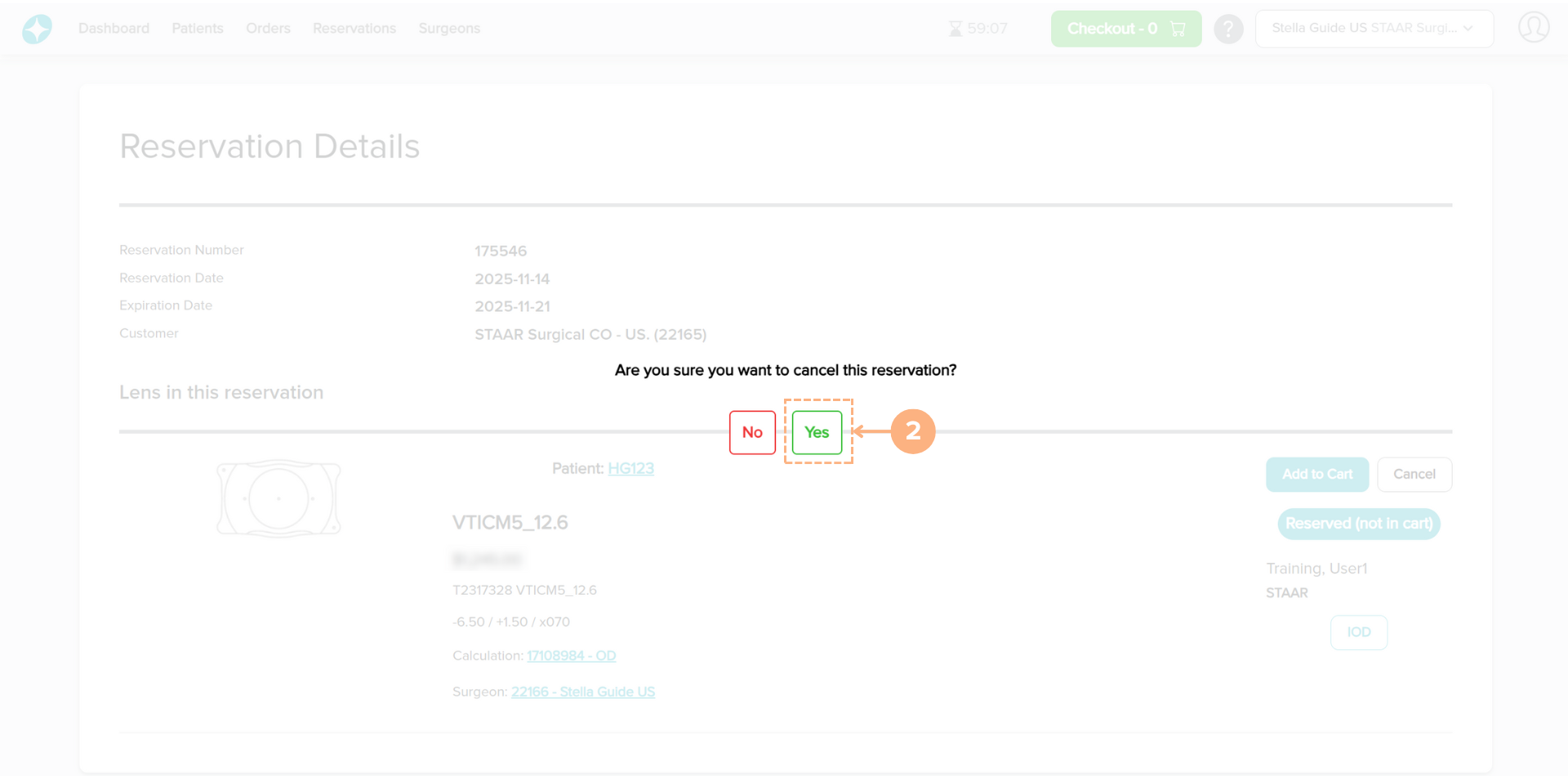
Click “Yes” to confirm the cancelation.
Note: To abandon the cancelation, click “No.”
The lens in reservation is marked as “Canceled” on the Reservation Details page. The patient’s full reservation history is accessible on the Patient Details page under RESERVATIONS.
How to Add Lenses to the Shopping Cart
After selecting and saving a target lens from the target lens selection screen, you can access the Inventory Lookup and select a lens to Add to Cart, Reserve, or Manufacture.
If you are ready to order a lens for purchase, you may add lenses to the shopping cart:
- Click on the Inventory Lookup button. You may view the inventory lookup for either eye, one at a time (if applicable).
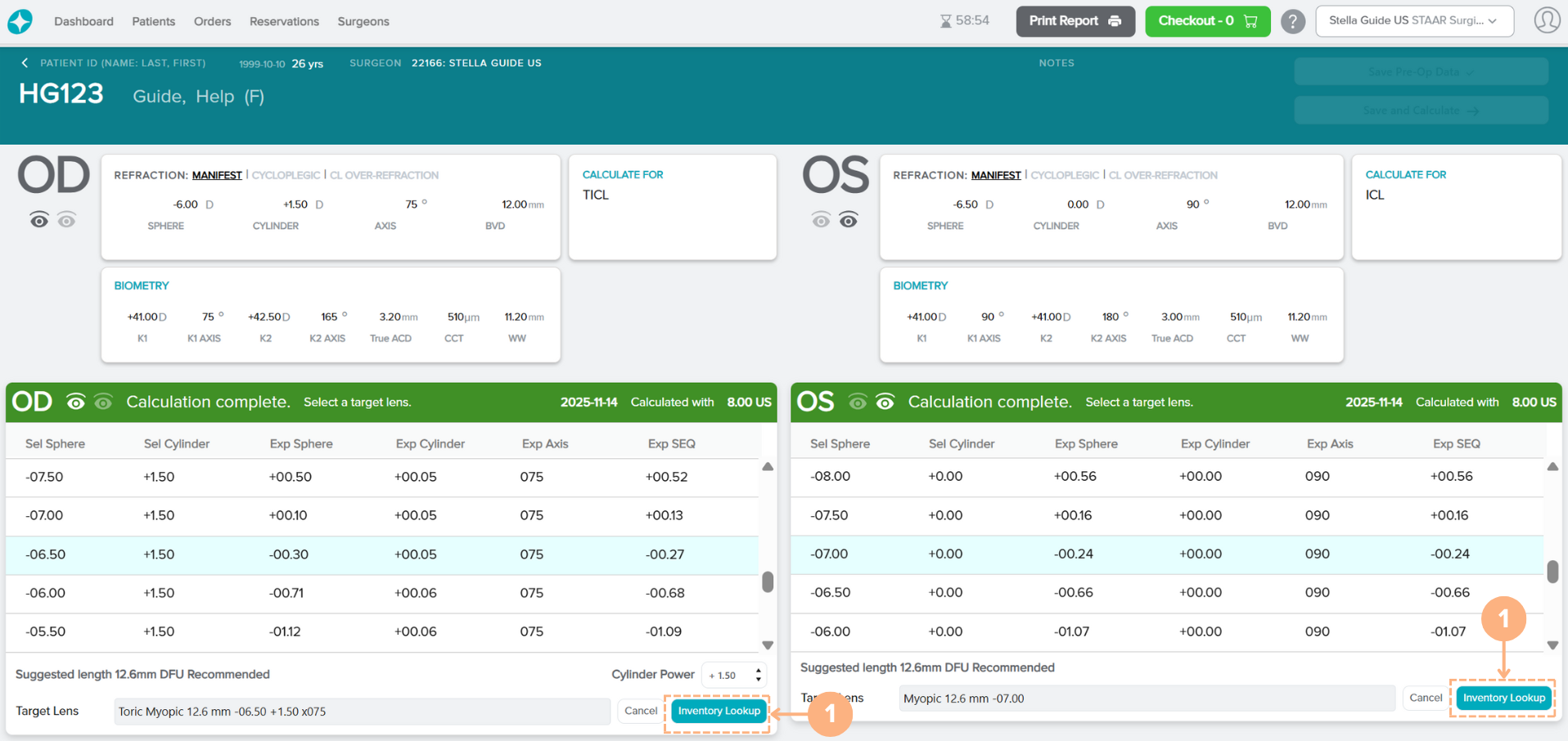
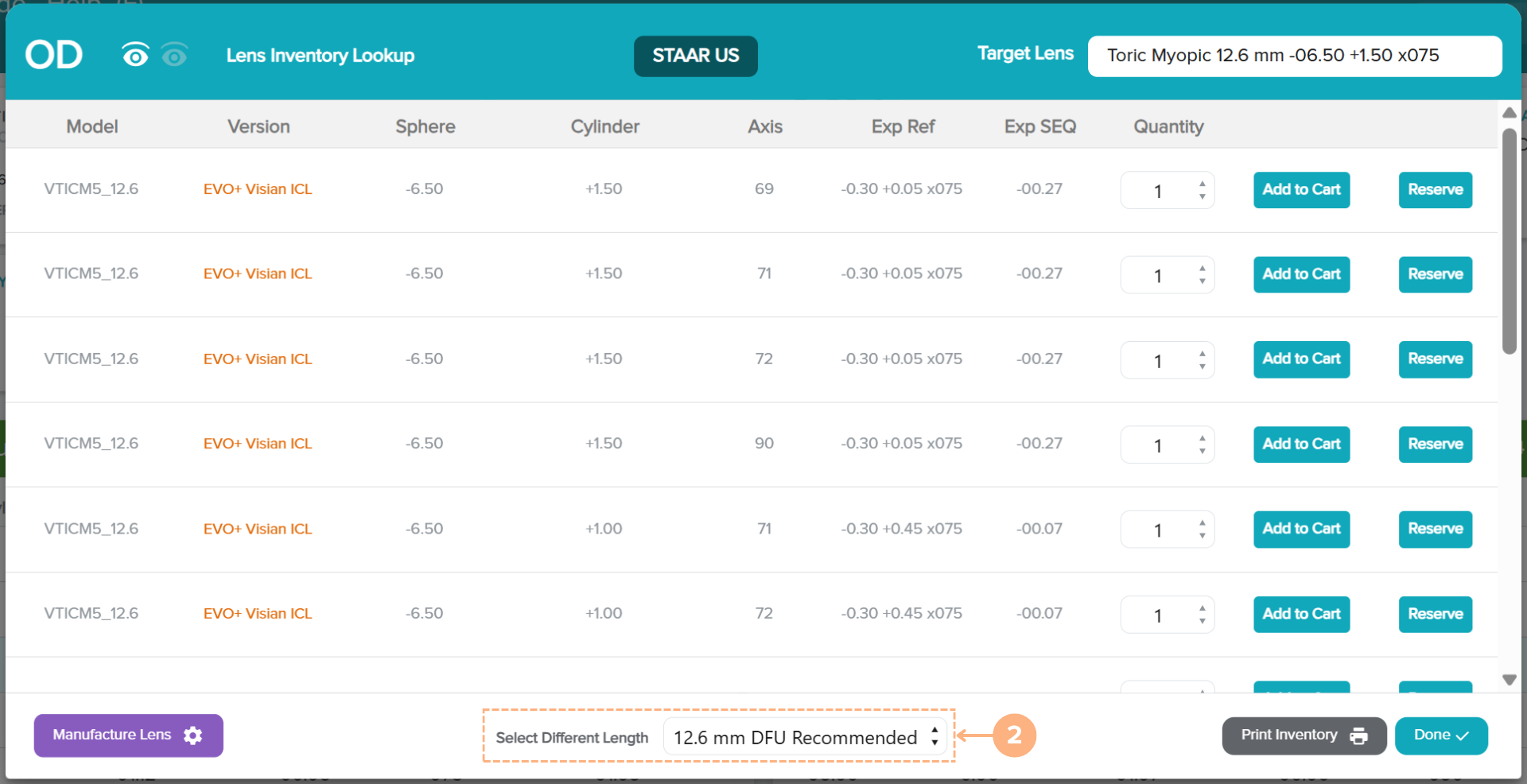
Confirm or select a different target lens length. Please keep in mind that a different target lens length may be selected but constitutes use outside of the DFU recommendations. To change the target lens length selection, click on the Select Different Length drop-down button and select the desired length.
Note: If a different target lens length is selected, a new set of EVO ICL lenses with the new calculated powers and expected post-op outcomes will be displayed.
- Select the Quantity.
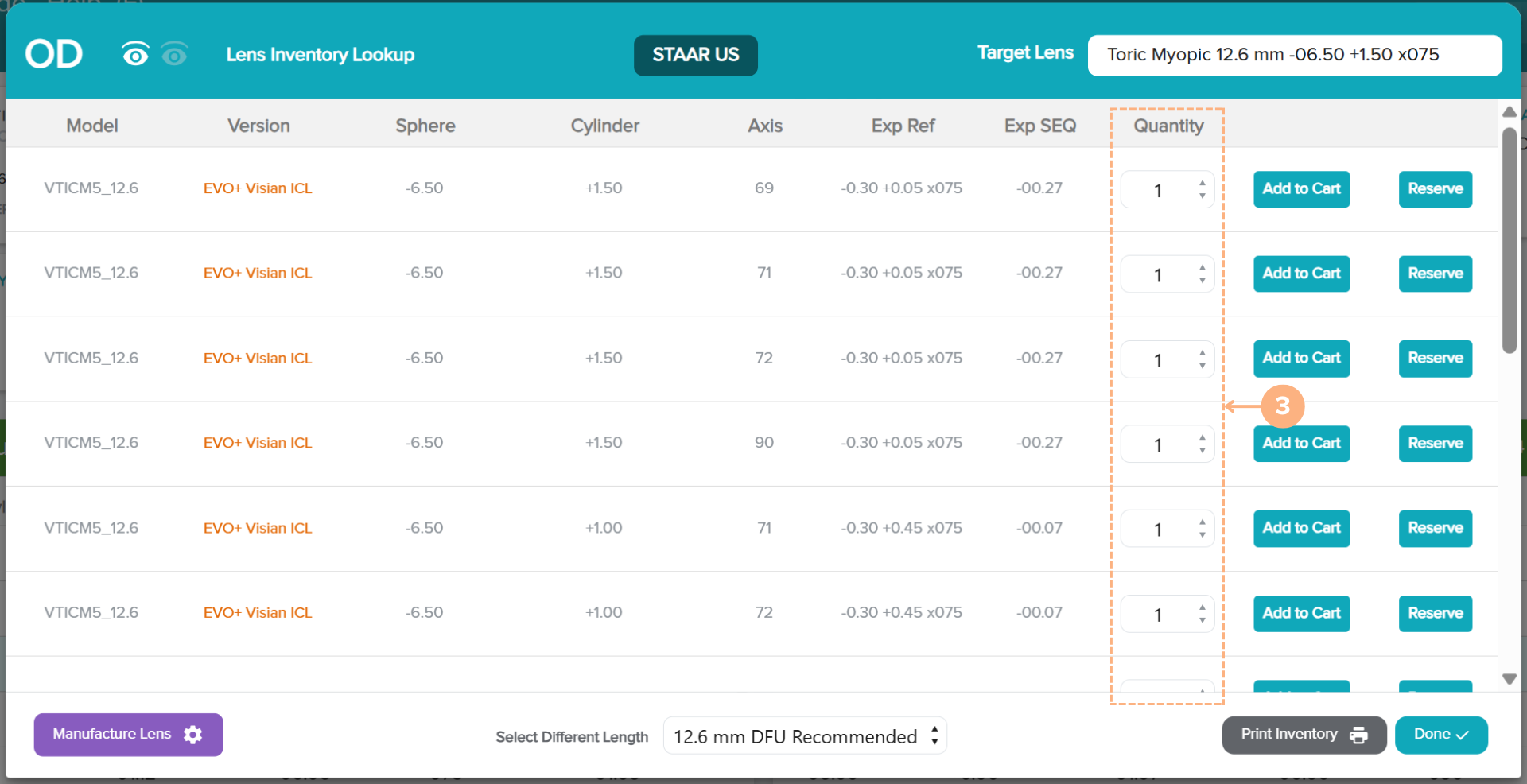
Please note that the available quantity varies based on customer settings and number of lenses with the same lens specifications available in inventory
- Click on the Add To Cart button of the desired lens.
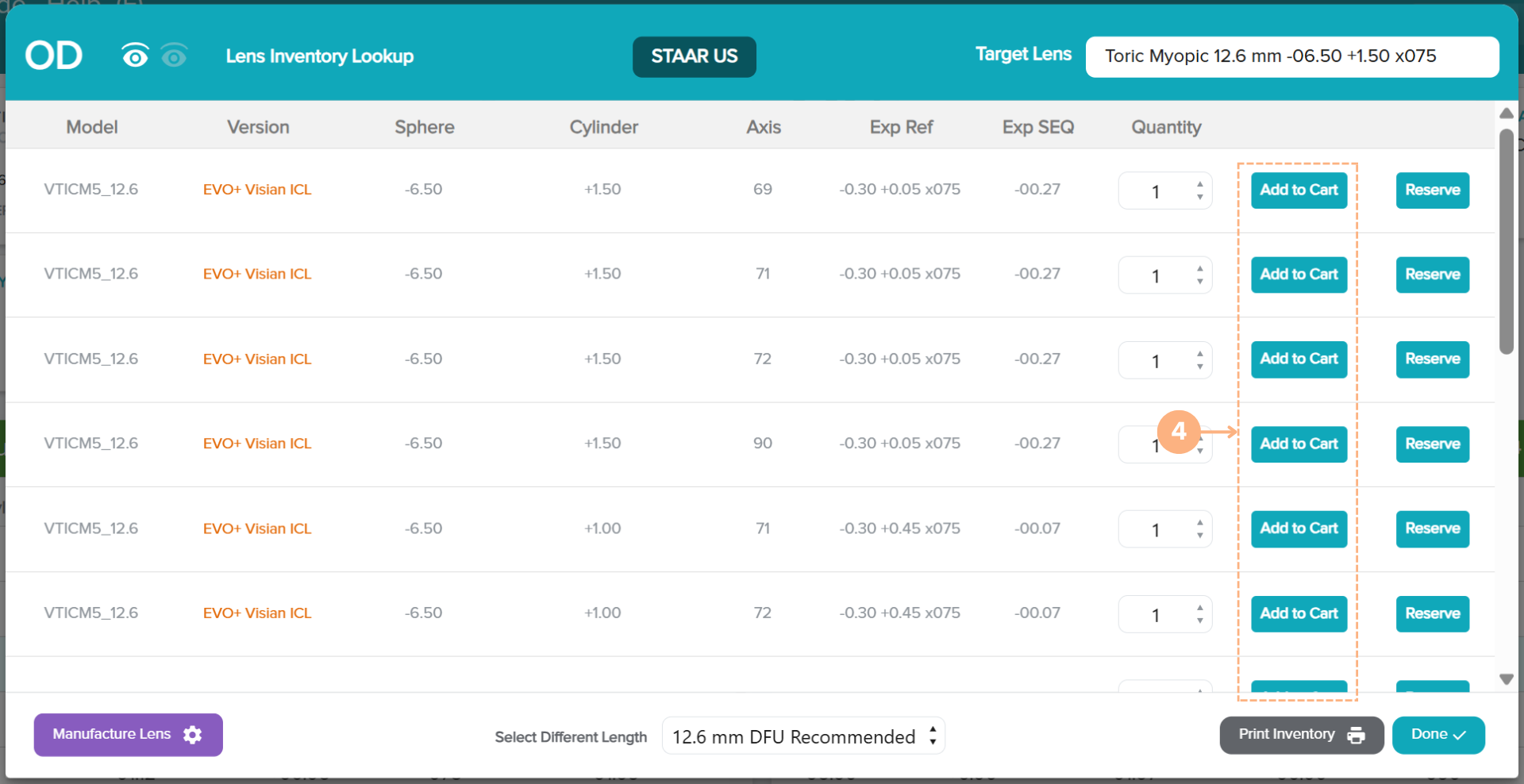
After selecting all desired lenses for the shopping cart, click on the Done button.
Note: If you need to remove a lens from your selection, click on the Cancel button of the In Cart lens.
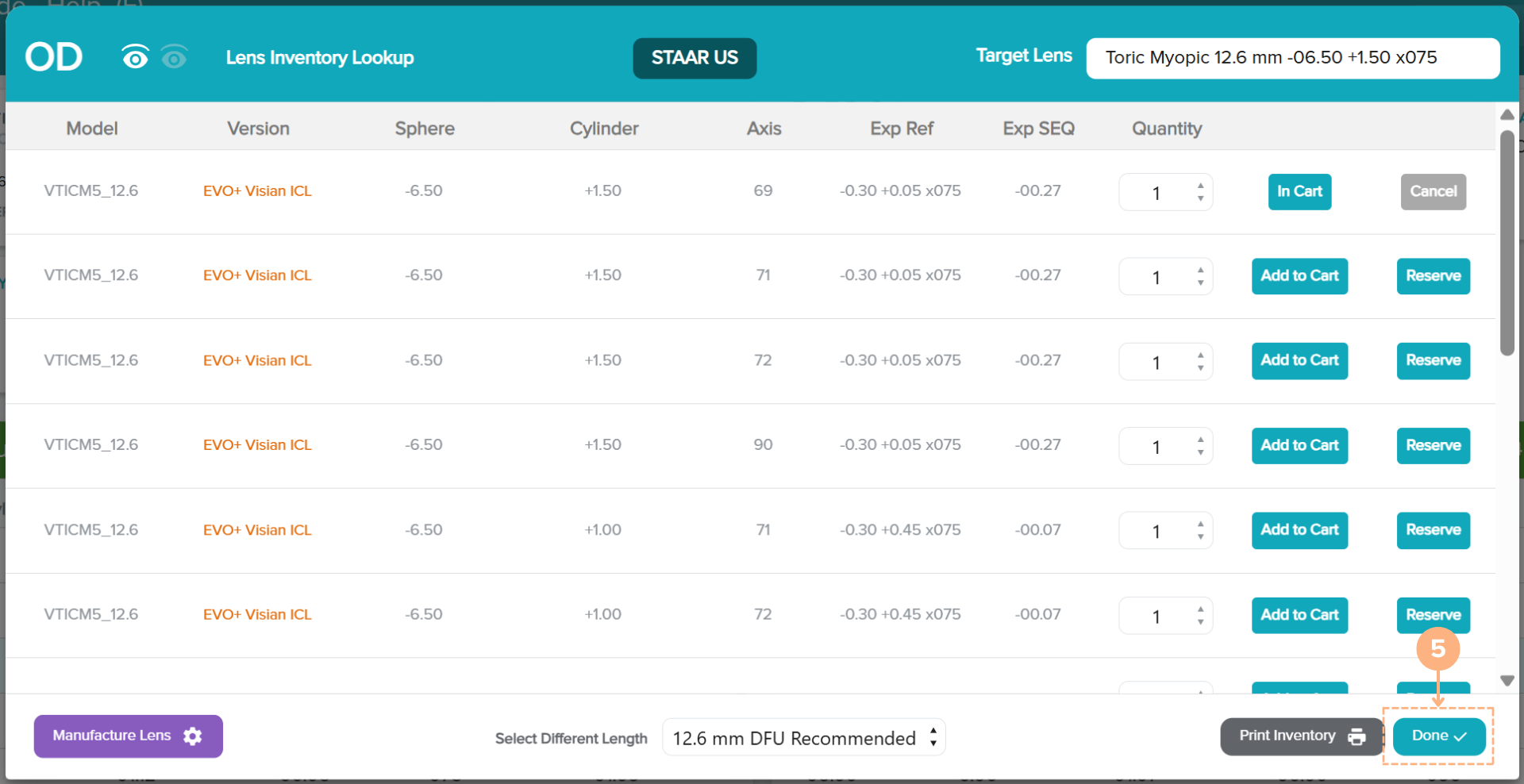
Follow the same steps above if placing lenses to add to cart for the other eye.
Clicking Done places the lens in the shopping cart and locks the calculation for that operative eye.
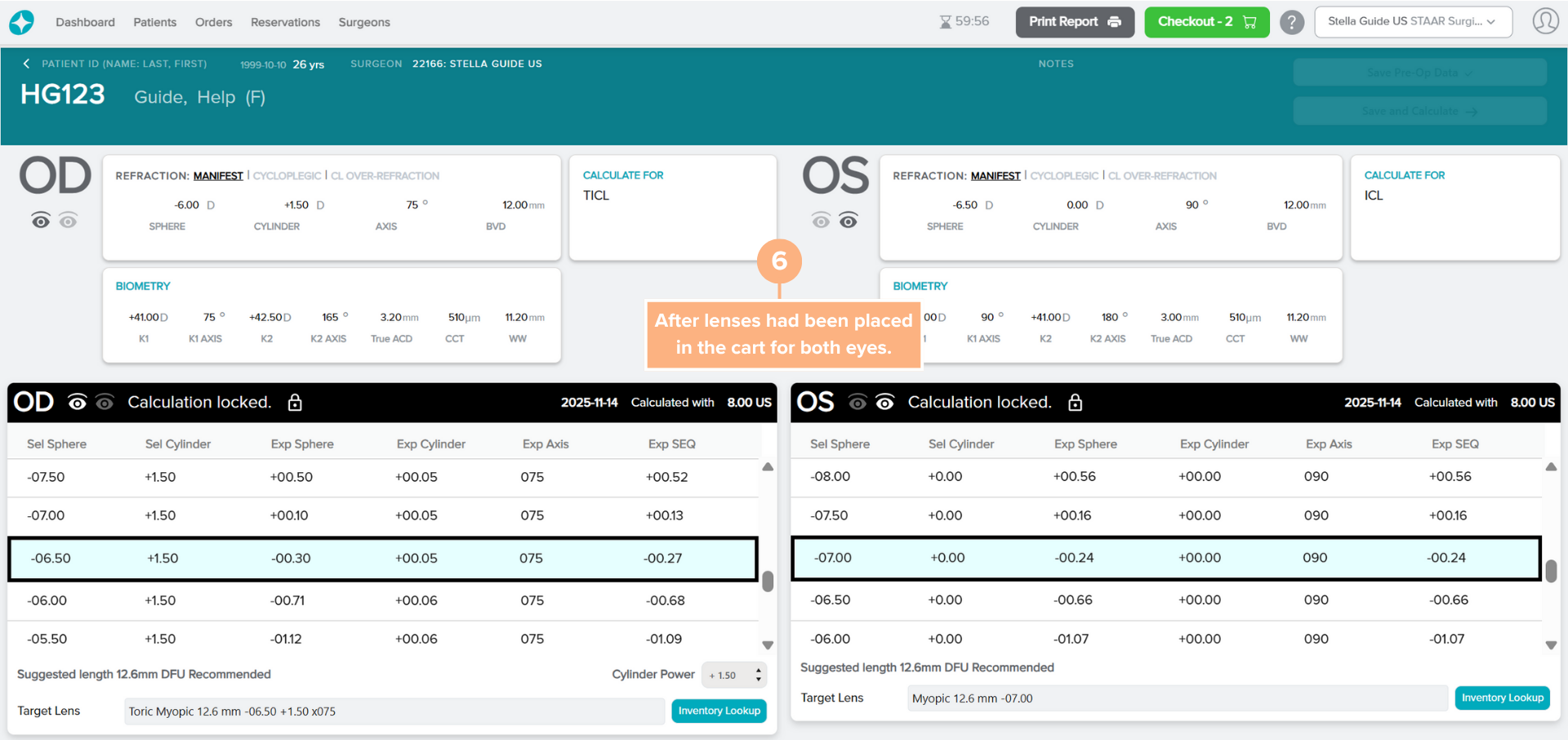
Once a calculation is locked, you can no longer make changes to the lens calculation. Although the calculation is locked, you can still view the Lens Inventory Lookup screen by clicking on the View Inventory button.
The shopping cart automatically populates with the lenses that you added to the cart. To proceed to the shopping cart, refer to How to Access the Shopping Cart. Then to checkout, refer to How to Checkout your Lenses.
Multiple Lens Selection Note: If you have not reached the maximum lens limit for an operative eye, you can still select additional lenses to Reserve, Add to Cart, or Manufacture through the View Inventory button.
Note: Lenses in the shopping cart, except for manufactured lenses, are automatically reserved. When a lens is removed from the Shopping Cart, the lens remains in the Reservations list, and can be re-added to the cart or canceled.
How to Manufacture Lenses
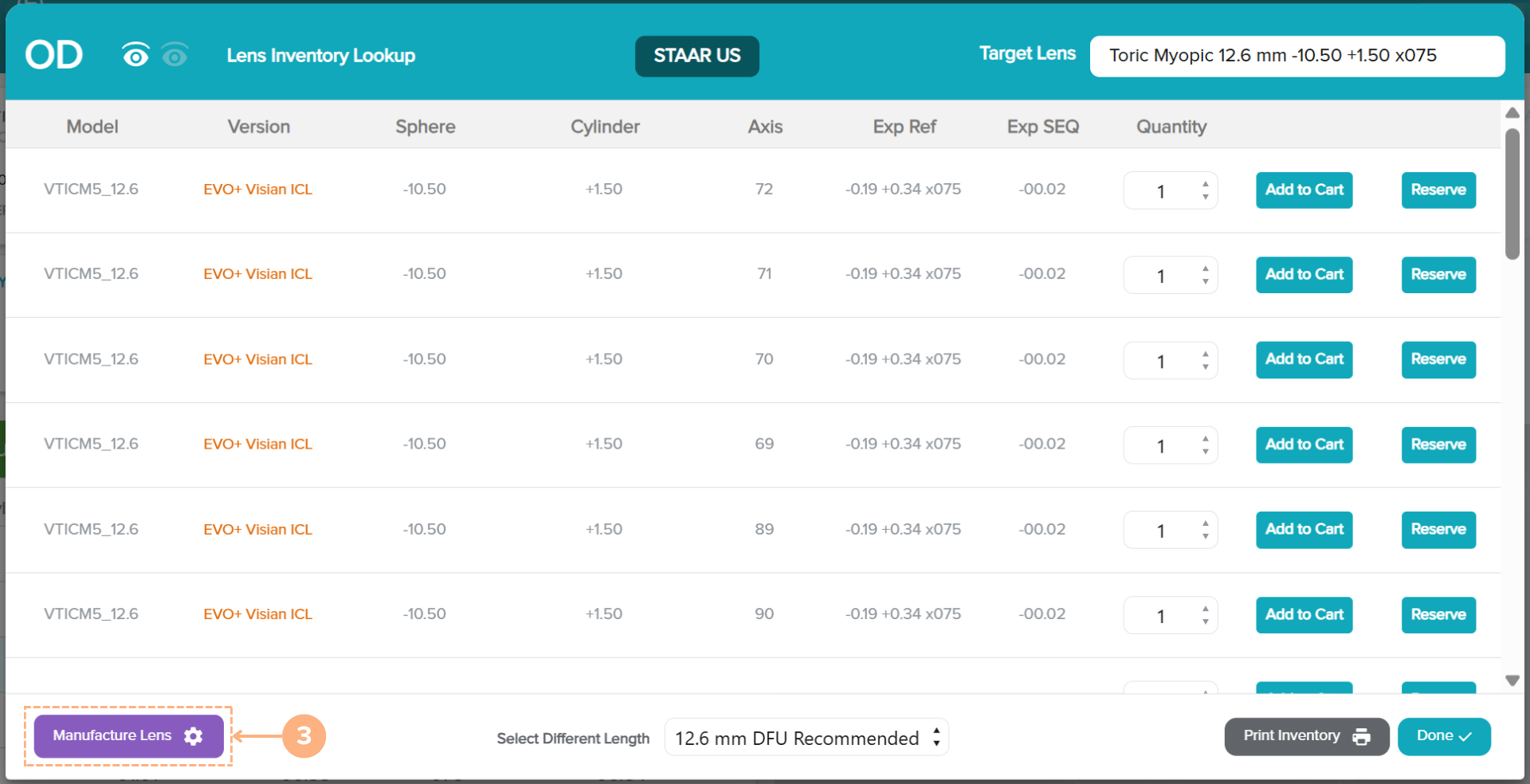
After selecting and saving a target lens from the target lens selection screen, you can access the Inventory Lookup and select a lens to Manufacture, Add to Cart, or Reserve. In the lens inventory lookup, an additional action that may be available is the Manufacture Lens button. This button appears when there are fewer than two lenses in inventory that match the target Sphere and Cylinder, and where Axis is within the surgeon's Axis tolerance.
To manufacture lenses:
- Click on the Inventory Lookup button.
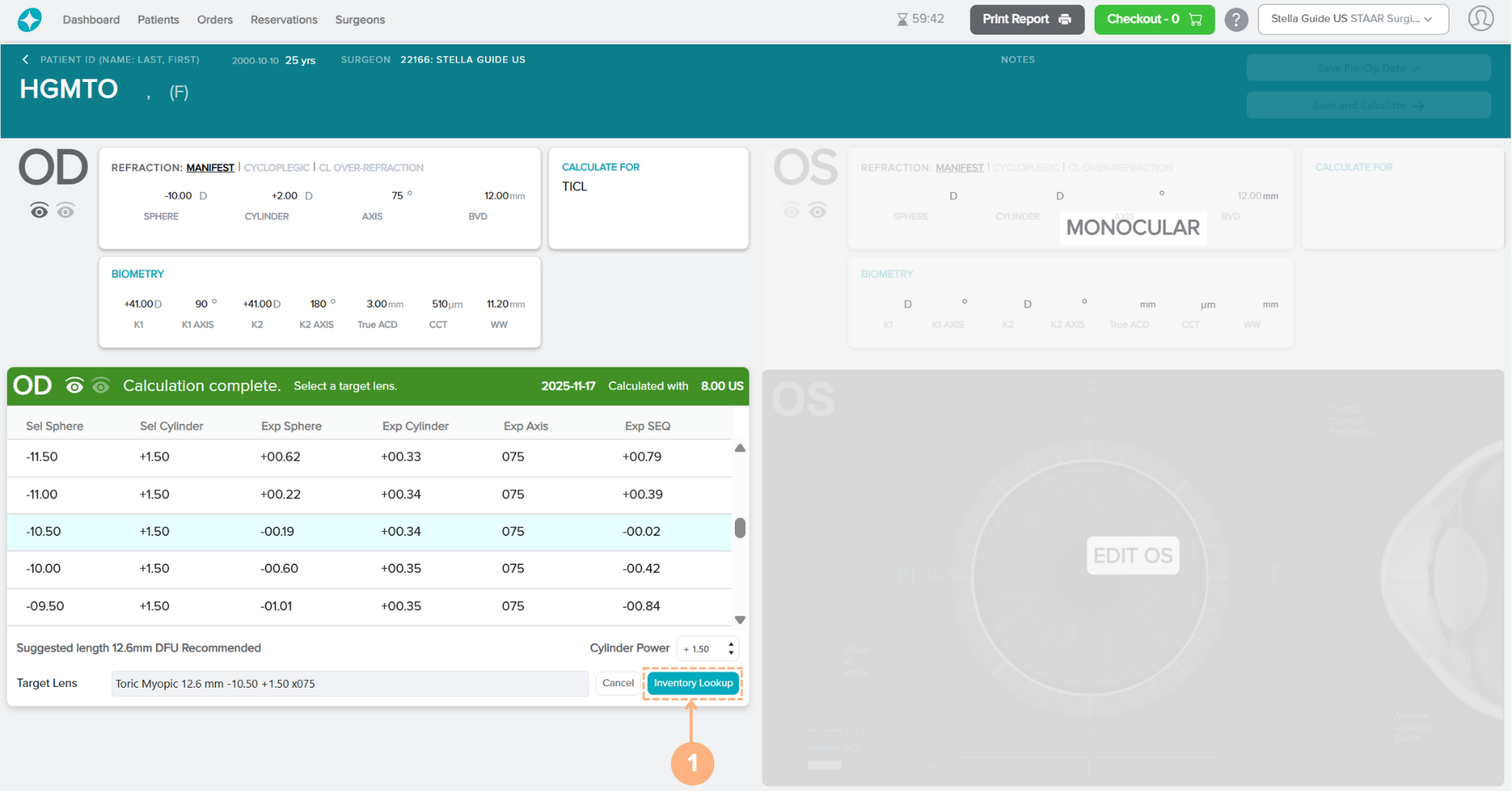
- Confirm or select a different target lens length. Please keep in mind that a different target lens length may be selected but constitutes use outside of the DFU recommendations. To change the target lens length selection, click on the Select Different Length drop-down button and select the desired length.
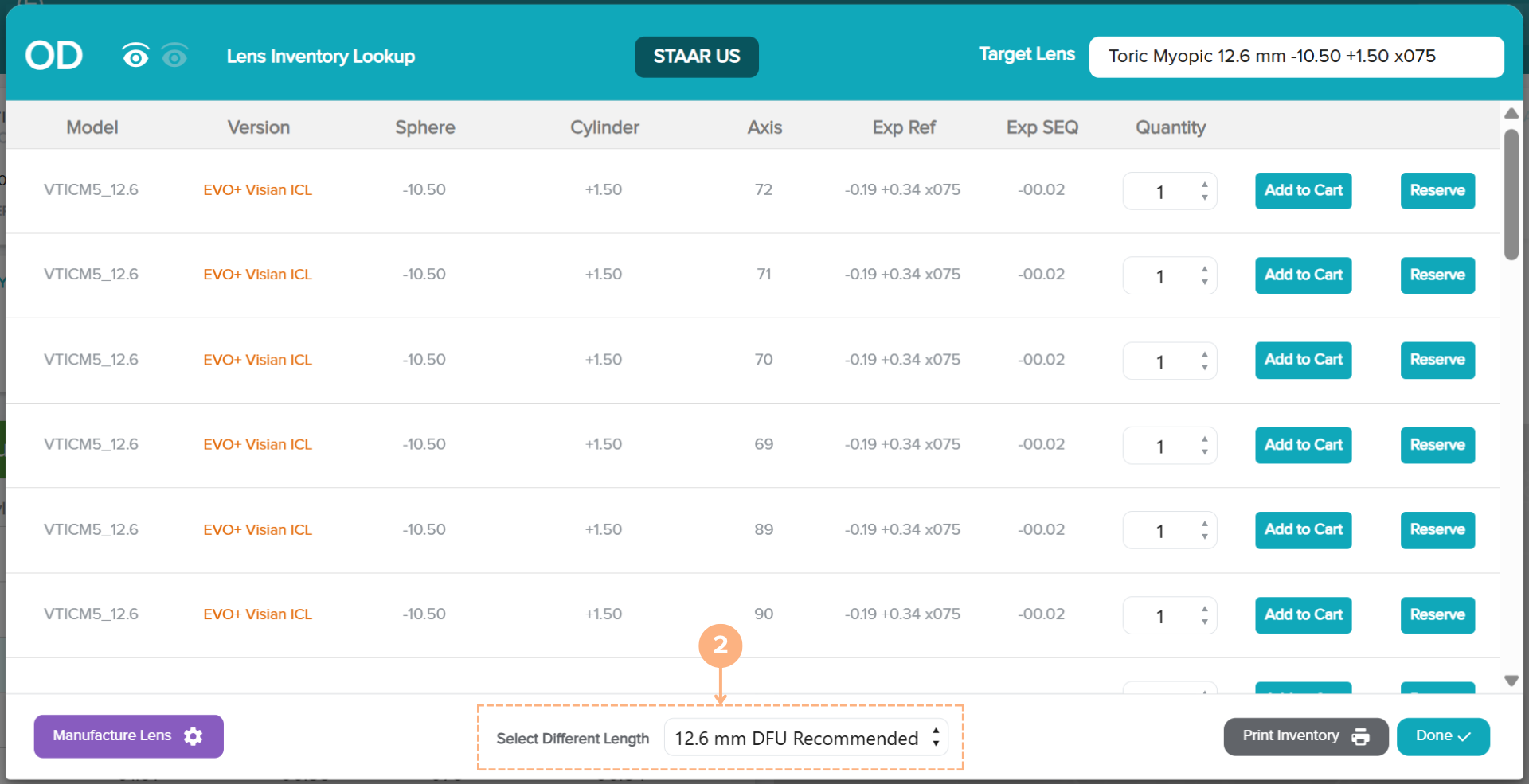
For applicable lenses to manufacture, click on the Manufacture Lens button.
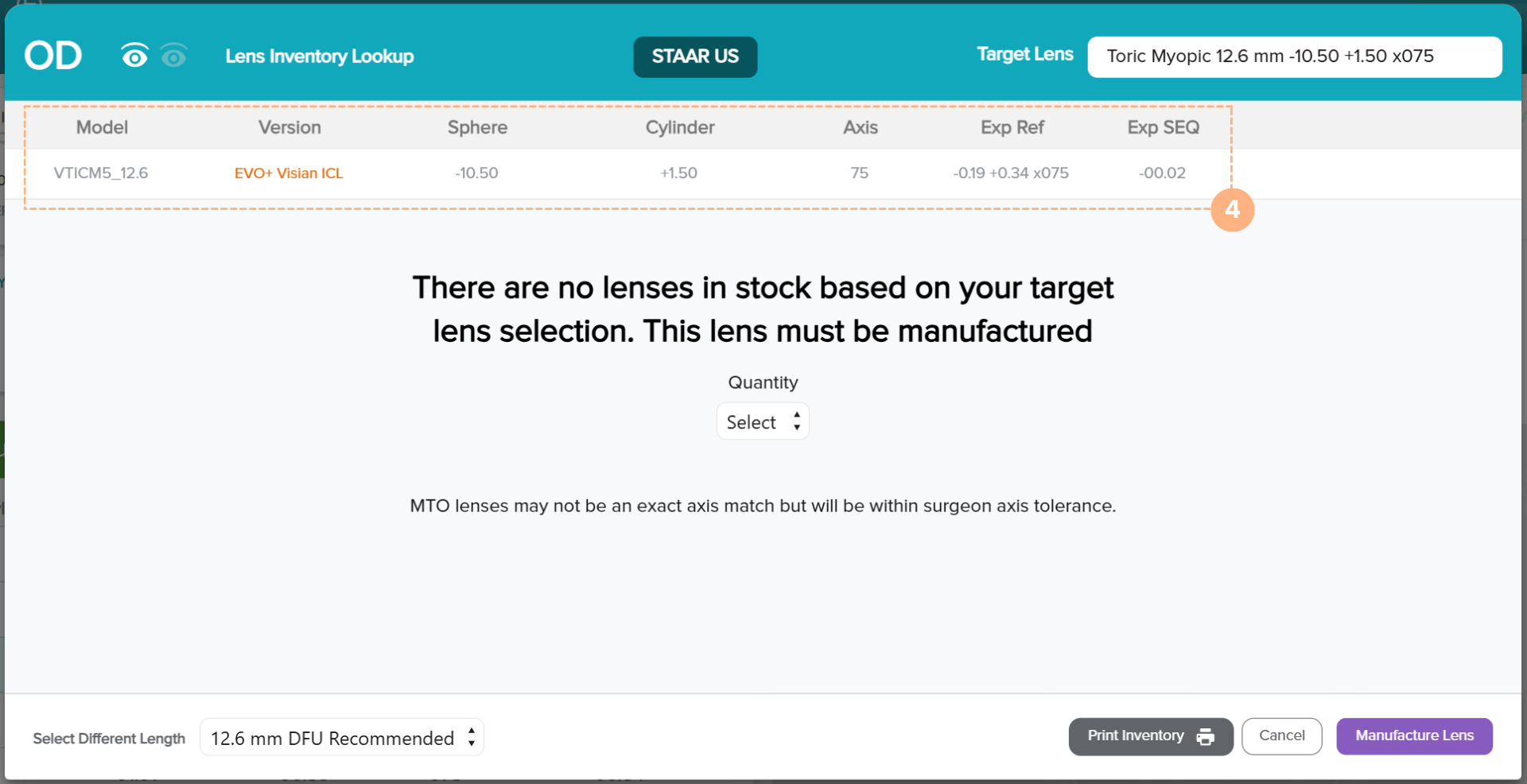
Confirm the lens listed is the desired lens you would like manufactured.
Note: Axis of 180 is the same as an Axis of 0, and MTO lenses may not be an exact axis match but will be within surgeon axis tolerance.
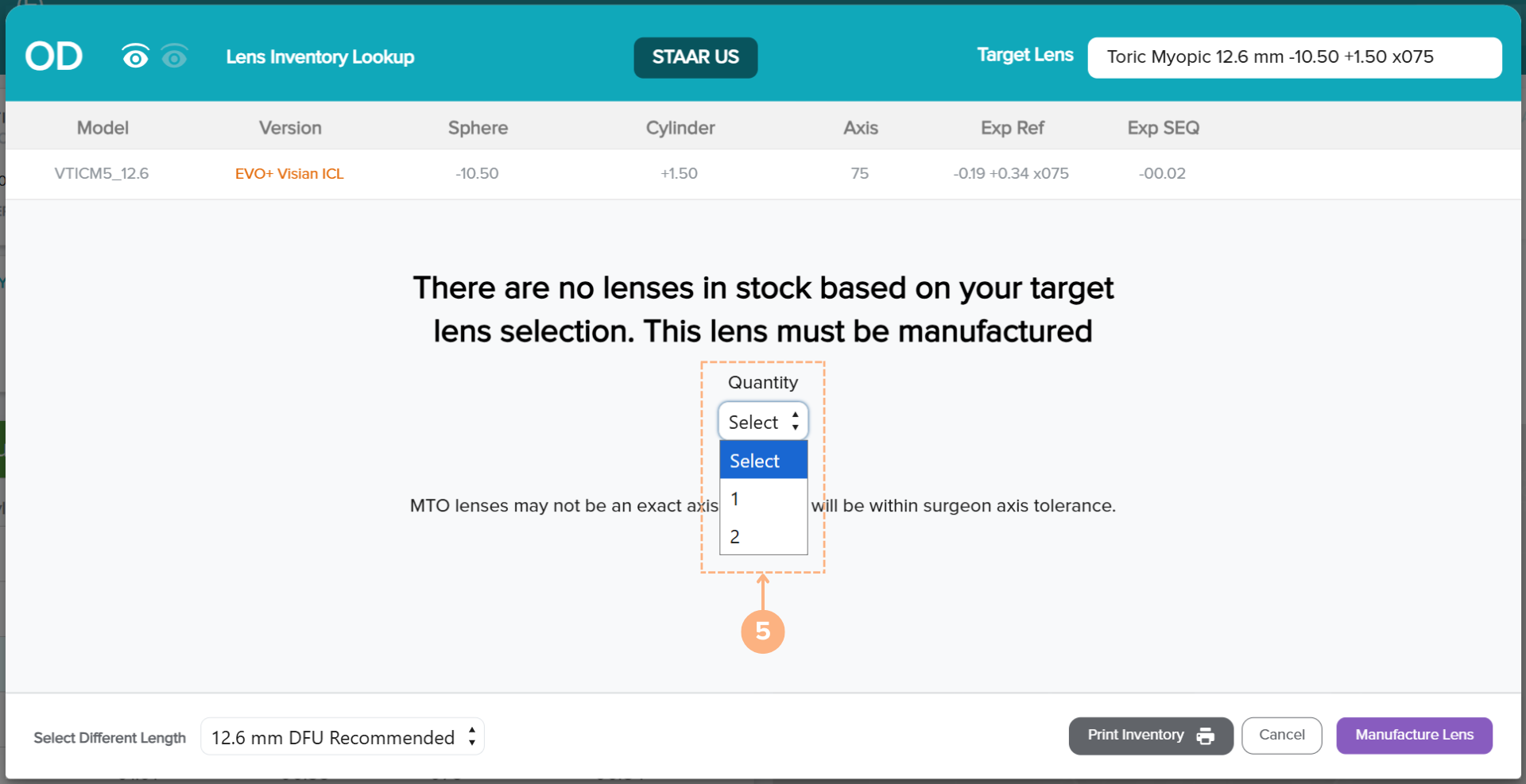
- Select the desired quantity of lens you would like to manufacture by clicking on the drop-down button.
Note: You may be able to select up to two lenses for each operative eye to manufacture.
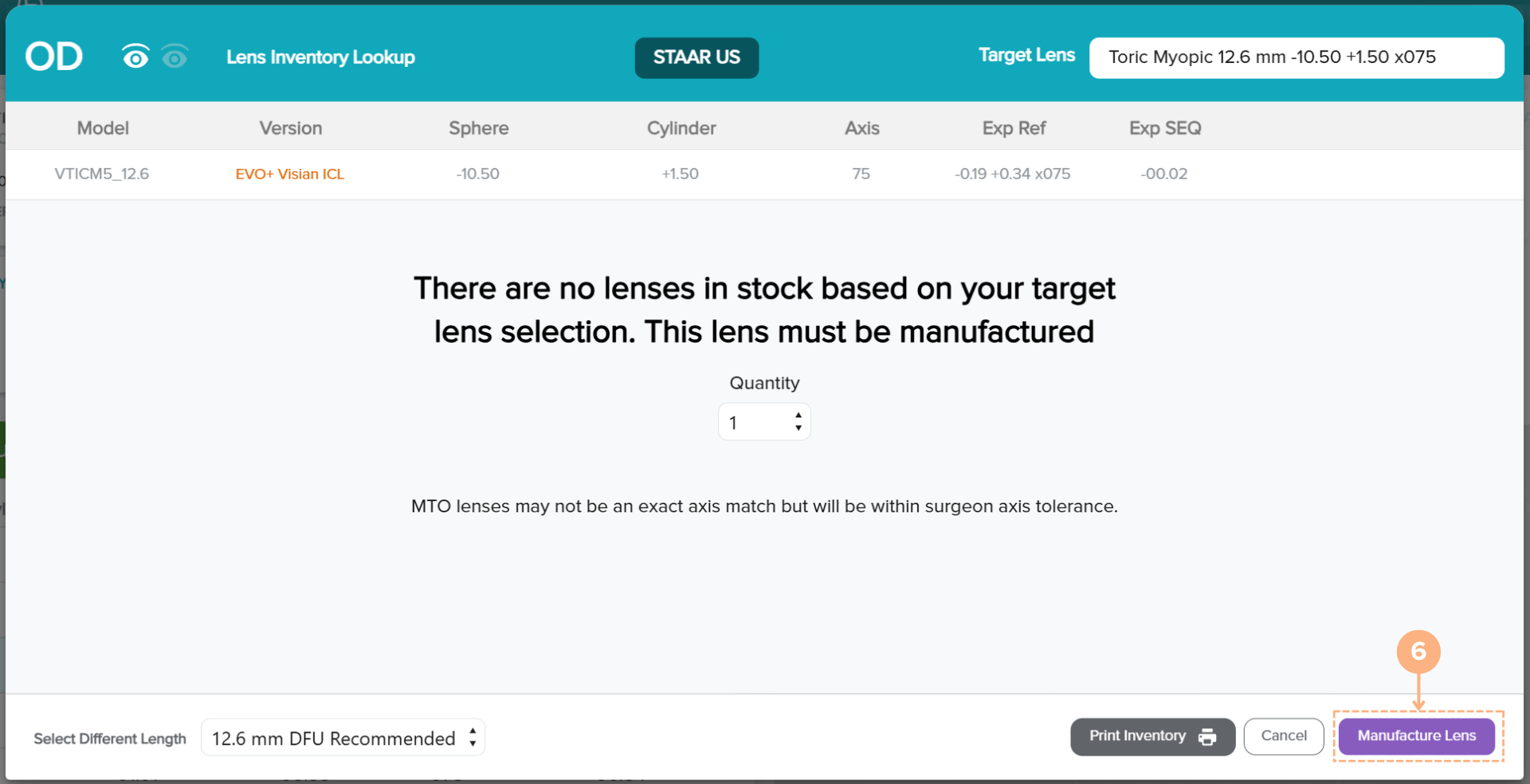
- Click on the Manufacture Lens button to add the lens to the shopping cart.
Note: If you would like to cancel the manufacture lens selection, click on the Cancel button to return to the original Lens Inventory Lookup screen.
Clicking Manufacture Lens places the lens for manufacture in the shopping cart and locks the calculation for that operative eye. Once a calculation is locked, you can no longer make changes to the lens calculation. Although the calculation is locked, you can still view the Lens Inventory Lookup screen by clicking on the View Inventory button.
Multiple Lens Selection Note: If you have not reached the maximum lens limit for an operative eye, you can still select additional lenses to Manufacture, Add to Cart, or Reserve through the View Inventory button. Keep in mind, that the maximum quantity of lenses that can be manufactured for each operative eye is two.
How to Print the Inventory List
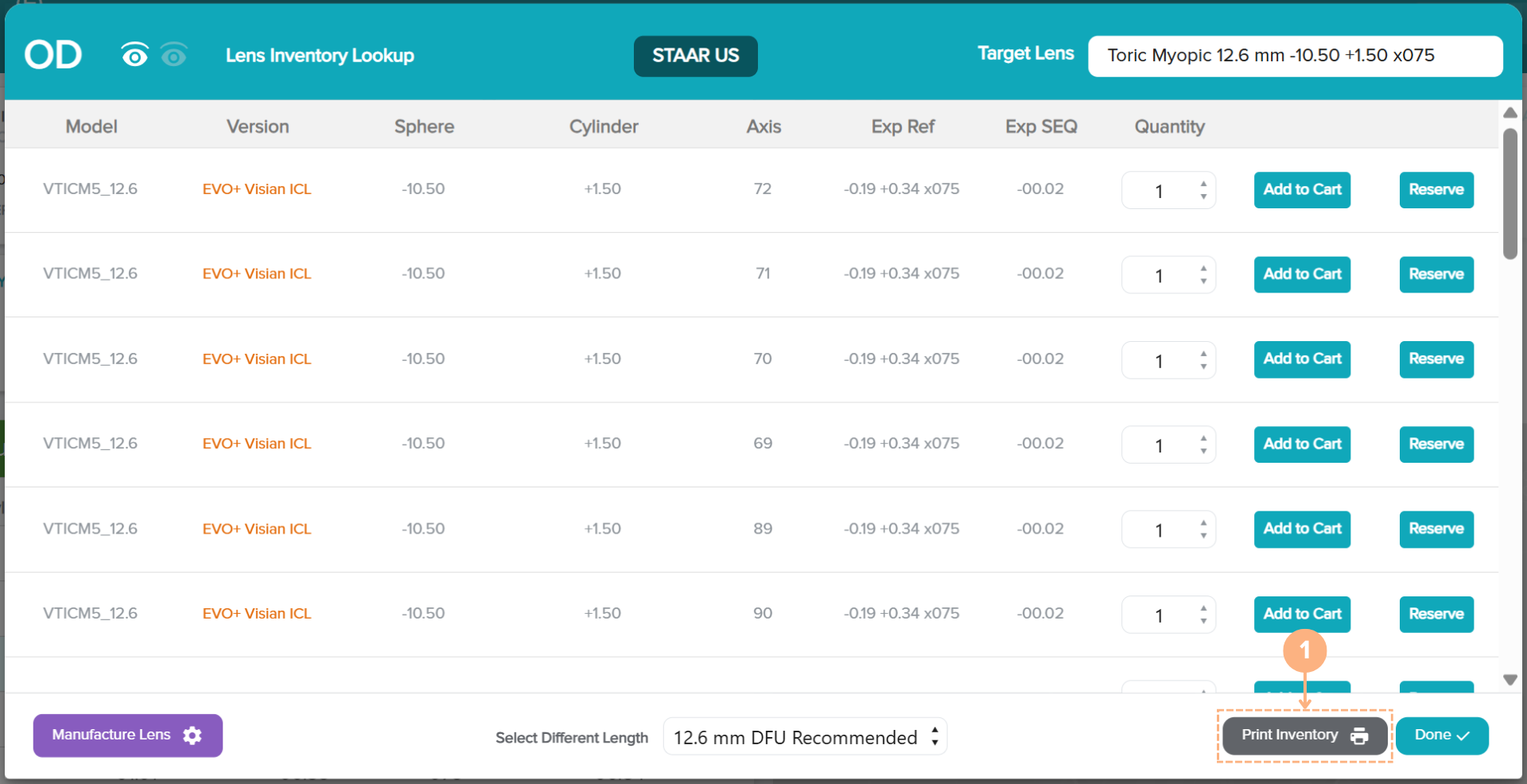
On the Lens Inventory Lookup screen, you may print a copy of the list of available lenses in the inventory. To print the inventory list:
- Click on the Print Inventory button.
- Click on the printer icon to initiate the print or click on the download button to save the PDF on your local or clinic network.
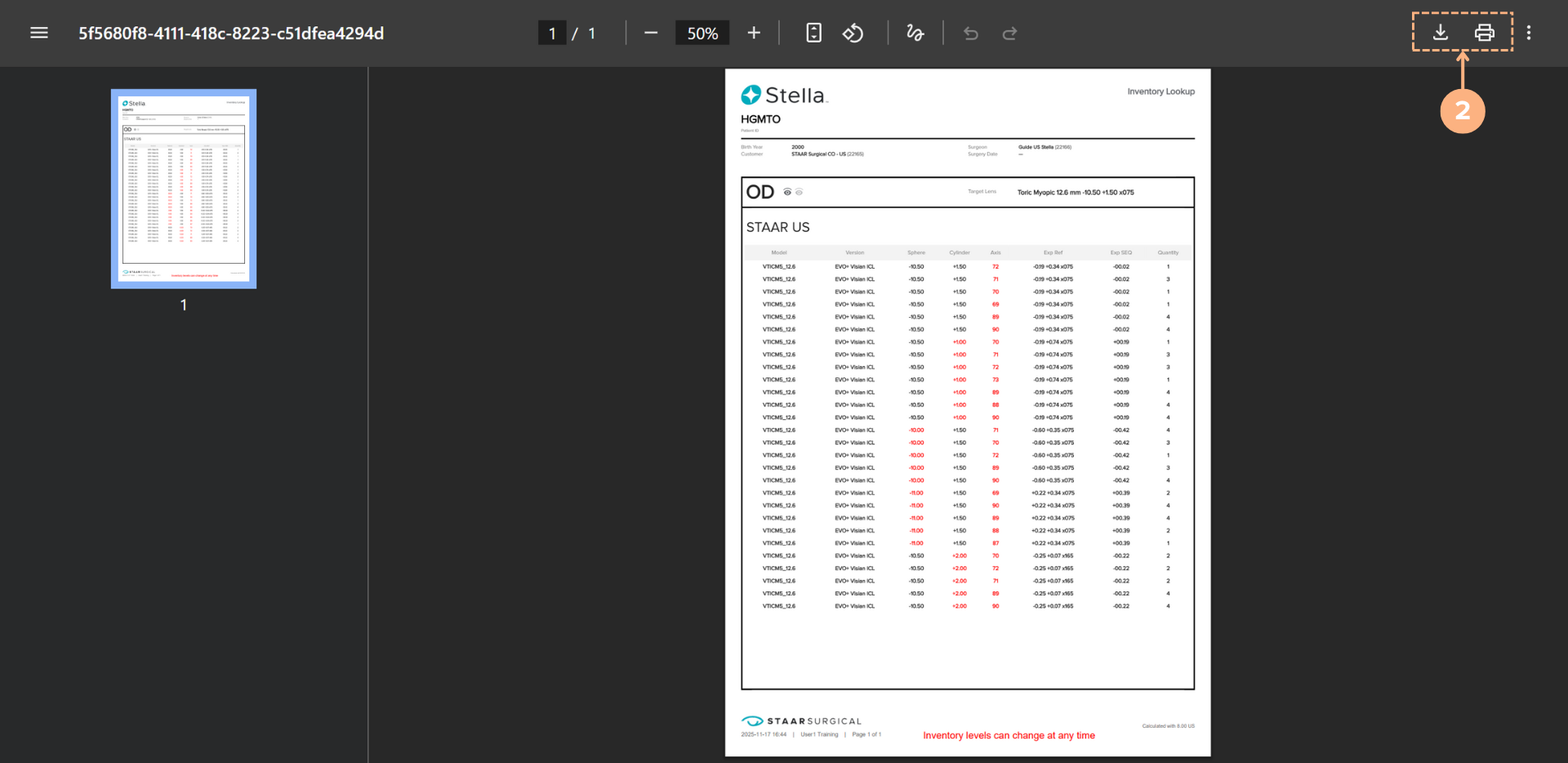
Note: Please be mindful that Inventory levels can change at any time. To access the most up-to-date inventory information, please view the real-time Lens Inventory Lookup screen on Stella. In addition, differences between the parameters of the reserved or ordered lens from the target lens will be color-coded in red.